Use the Datama Skill
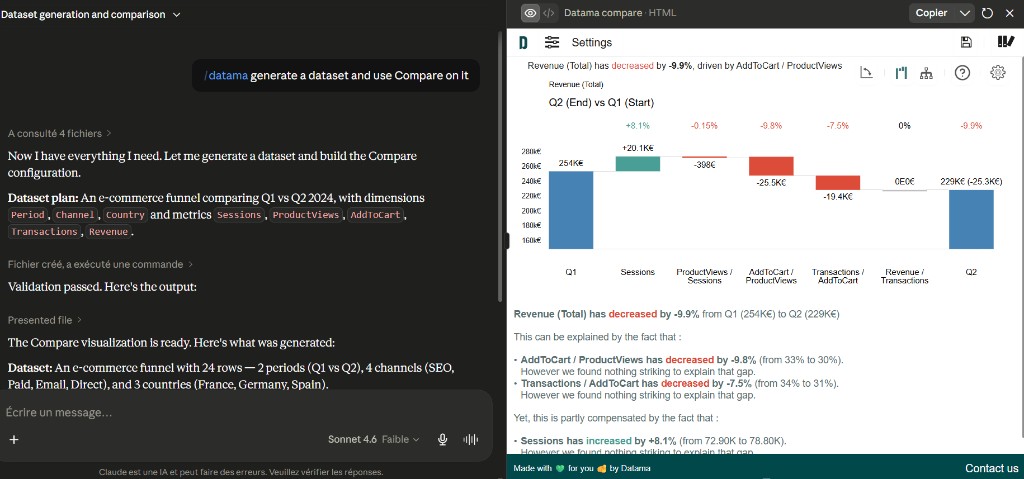
Once the Datama skill is installed, ask your AI assistant in plain language. It reads your data, picks Compare or Explore, builds the configuration, and delivers a standalone HTML visualization.
1. How to invoke the skill
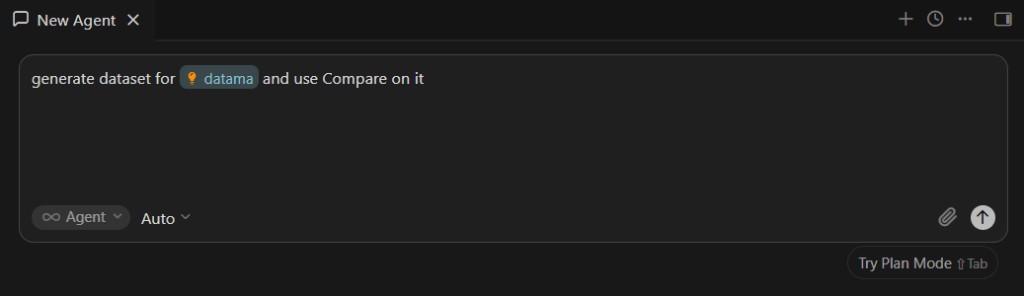
Mention datama in your prompt so the host routes to the skill. Depending on your assistant, this can be a slash command (for example /datama), an @mention, or simply describing a Compare or Explore question in natural language when auto-trigger is enabled.
2. Provide your data
The assistant needs a tabular dataset. You can provide it in any form the host supports:
- an uploaded CSV or XLSX file,
- data pasted in the conversation,
- a connector the assistant can call (Google Sheets, BigQuery, …),
- a dataset you ask the assistant to generate for testing.
If the raw data is very large (roughly more than 20 000 rows), the assistant should aggregate along the requested dimensions before building the visualization.
3. Example prompts
Compare: variance / waterfall
Use Compare when you want to understand why a KPI changed between two sides:
- “Compare Q1 vs Q2 revenue and explain the change.”
- “Decompose the drop in conversion rate between mobile and desktop.”
- “What explains the delta in sessions week over week?”
- “Why did revenue drop between these two periods?”
Explore: breakdown / slicing
Use Explore when you want to slice a metric without a mandatory A vs B comparison:
- “Break down revenue by country.”
- “Plot conversion by device and channel.”
- “Explore sessions across campaign.”
- “Show the distribution of orders by week.”
4. What the assistant delivers
The assistant follows the skill workflow:
- Reads your data and infers column types (dimensions vs metrics).
- Picks Compare or Explore using the routing rules.
- Builds the Datama configuration from the bundled reference specifications.
- Delivers a standalone
.htmlfile (or an in-chat preview). - Validates the output before delivery.
Open the HTML in any browser. The visualization renders entirely in the browser. Your rows never leave the page.
5. Adjust the look and the comment
Once the page is delivered, keep talking to the assistant: it edits the page’s settings instead of rebuilding it. Everything below is available to the skill.
Colors and theme
- Named palettes: default, modern, ocean, sunset, datama, brand, vintage, luxury, excel (“make it more modern”, “use presentation colors”).
- Custom colors: your series colors, the waterfall Up / Down / total colors, and the application colors (primary, texts, surfaces, background, font).
- Style preset: one key for the whole look and feel: standard, modern, vintage, luxury, excel, brand, presentation (same as Chart › Preset). A preset sets shapes, typography and chrome; the palette sets the colors. For “make it look modern”, the assistant sets both.
- To flip good and bad news (a decrease is good for costs or churn), ask to reverse the colors rather than repainting the bars.
An explicit request always wins over what a preset suggests: a preset is a starting point, not a lock.
Chart and comment (Compare)
| Ask | What changes |
|---|---|
| “Put the text on the right” | Comment placement: below (default), right, left or hidden |
| “Make the comment bigger / centered” | Comment font size (8–48 px) and alignment |
| “Add a title: Revenue Q1 vs Q2, EMEA” | Chart title and subtitle bands, shown with your exact text |
| “Hide the values on the bars” | Value labels on / off (values stay on hover) |
| “Show the gap between Start and End” | Difference arrows between two bars: percent, absolute or both, or a compound annual rate (CAGR) between two dated bars |
Arrows drawn by hand in Datama stay untouched; the ones requested through the assistant are rebuilt from the settings on each render, so removing one removes the arrow.
6. Get the results as text (licensed skill)
With a licensed skill, the assistant can also read back what Datama computed (the drivers table shown in Table view, and the generated title and comment) and quote them in its answer, a report or a next step (“summarize the drivers”, “give me the decomposition as a table”).
- Claude (claude.ai, Desktop): the page stores its results in the artifact itself and the assistant reads them back. The page must have been opened once so it can compute; if the assistant says the results are not there yet, open the artifact and ask again. A very large table is trimmed to the segments with the largest impact, and the assistant says so.
- Claude Code, Cursor, scripts: a local extraction runs the page in a headless browser and returns the same results.
- Other hosts (Dust, ChatGPT without code sandbox): the page is delivered, but the numbers cannot be returned as text.
The assistant never recomputes the figures itself: results always come from Datama. On a demo skill, results are not available.
Because the artifact stores its results, a Claude artifact built for results is shared inside your organization only (no public link). The assistant only enables this when you ask for the numbers.
7. Download as HTML
The header button Download as HTML is available on pages from a licensed skill (disabled in demo). On claude.ai it opens a native save prompt; in a regular browser tab it downloads the file; in other sandboxed hosts it copies the HTML to the clipboard so you can paste it into a .html file.
8. Compare vs Explore: quick reference
| Question type | Solution | Example |
|---|---|---|
| Two periods, two segments, “vs”, “before/after” | Compare | “Compare Q1 vs Q2” |
| Breakdown by dimension, funnel step, distribution | Explore | “Revenue by country” |
| Both comparison and breakdown language | Compare | “Why did mobile revenue drop vs desktop?” |
| Unclear | Compare | - |
9. License and output mode
The mode of each generated visualization depends on how you downloaded the skill:
| Download option | Result |
|---|---|
| With license | Paid mode |
| Without license | Demo mode |
10. Going further
- What is a Datama Skill?, concepts, security, compatible hosts.
- Datama Compare documentation, understand waterfall graphs and KPI trees.
- Datama Explore documentation, understand breakdown visualizations.
- How to build my business metric relation, define steps and market equations.