Install the Datama Skill
Install the Datama skill once in your AI assistant. Whether you use a web chat or a coding IDE, the package is always the same
datama.zipfile from your Datama account.
Before you start, download the skill (datama.zip).
1. Which tools are supported?
The Datama skill follows the open Agent Skills format. Any product that supports this format can run the skill — you are not limited to a single vendor.
The Agent Skills client showcase lists assistants, IDEs, and agents that support skills today. Examples include Claude, Cursor, GitHub Copilot, VS Code, OpenAI Codex, Gemini CLI, Mistral AI Vibe, and Snowflake Cortex Code. The list grows as new products adopt the standard — check the showcase for the latest compatible tools and their setup instructions.
2. Install in a web assistant
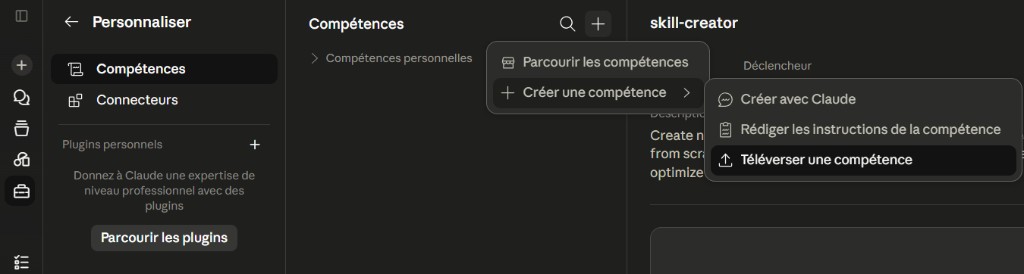
Many web-based assistants let you upload a skill zip from their settings. The screenshots below show Claude as an example; other web hosts follow a similar flow.
- Open the Skills section in your assistant’s settings (the exact menu name varies by product).
- Choose Upload a skill (or the equivalent option).
- Select the
datama.zipfile you downloaded from Datama. - Confirm. The datama skill appears in your skills list.
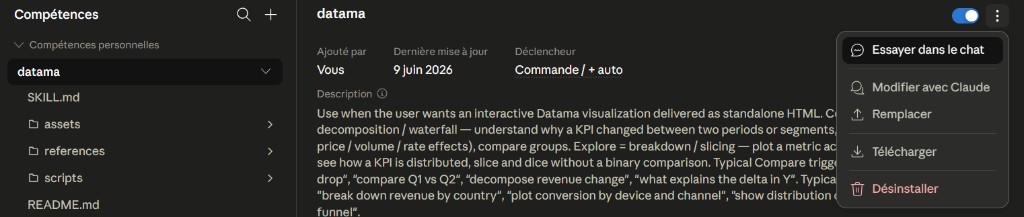
Once installed, you can review the skill details, enable or disable it, and try it directly from the chat:
3. Install in an IDE or desktop agent
IDEs and desktop agents usually load skills from a folder in your workspace or user directory. The screenshot below shows Cursor as an example; other IDEs and agents follow the same pattern.
- Unzip
datama.zip. - Copy the extracted
datamafolder into your host’s skills directory (for example.agents/skills/at the root of your project). - The folder structure should look like this:
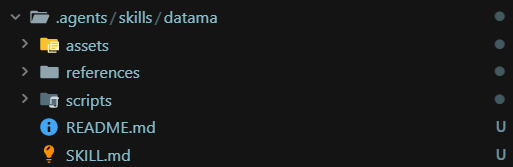
.agents/skills/datama/
├── SKILL.md
├── README.md
├── assets/
├── references/
└── scripts/
- Open a new agent chat. The host detects the skill when you mention datama in your prompt.
4. Requirements
- An AI assistant listed on the Agent Skills client showcase, or any other product that supports the Agent Skills format.
- Ability to produce or open standalone HTML in the host (file save, preview panel, canvas, or chat attachment).
5. Next steps
- Use the skill with natural-language prompts and your data.
- Download page — change license option or re-download after a subscription update.