How to use Datama Explore (Light) in Tableau Viz
Using Datama Explore as a Tableau Viz extension is a great way to make your report more insightful with the benefits of both.
1. Overview
This document provides detailed documentation for the “Datama Explore” plugin, a powerful extension for Tableau Viz. This plugin enhances data analysis capabilities by breaking down any KPI or sub KPI by any dimension in your dataset.
Below is a short intro video
2. Features
-
1. Dimension and second breakdown: Datama Explore lets you break down every metric in your dataset across any available dimension. You can also drill down dimension-by-dimension: for instance, start by breaking down product sales by Country in D1. If you want to focus on the UK, you can then introduce a second breakdown dimension in D2—such as Channel, Device, or any other available dimension—to refine the analysis.
-
2. Second metric: Datama Explore also supports comparing two KPIs side by side. Simply add a second metric in M2. For example, you can define M1 = Sessions and M2 = ABV to visualize how the two metrics evolve across your chosen dimensions.
-
3. Comparison dimension: When you set a comparison dimension—e.g., Device—and compare two segments such as Tablet vs. Mobile on the Sessions KPI, Datama Explore automatically builds a comparison dimension. This new dimension aggregates the metric values by the selected segments, including Mobile, Tablet, and any other device category.
-
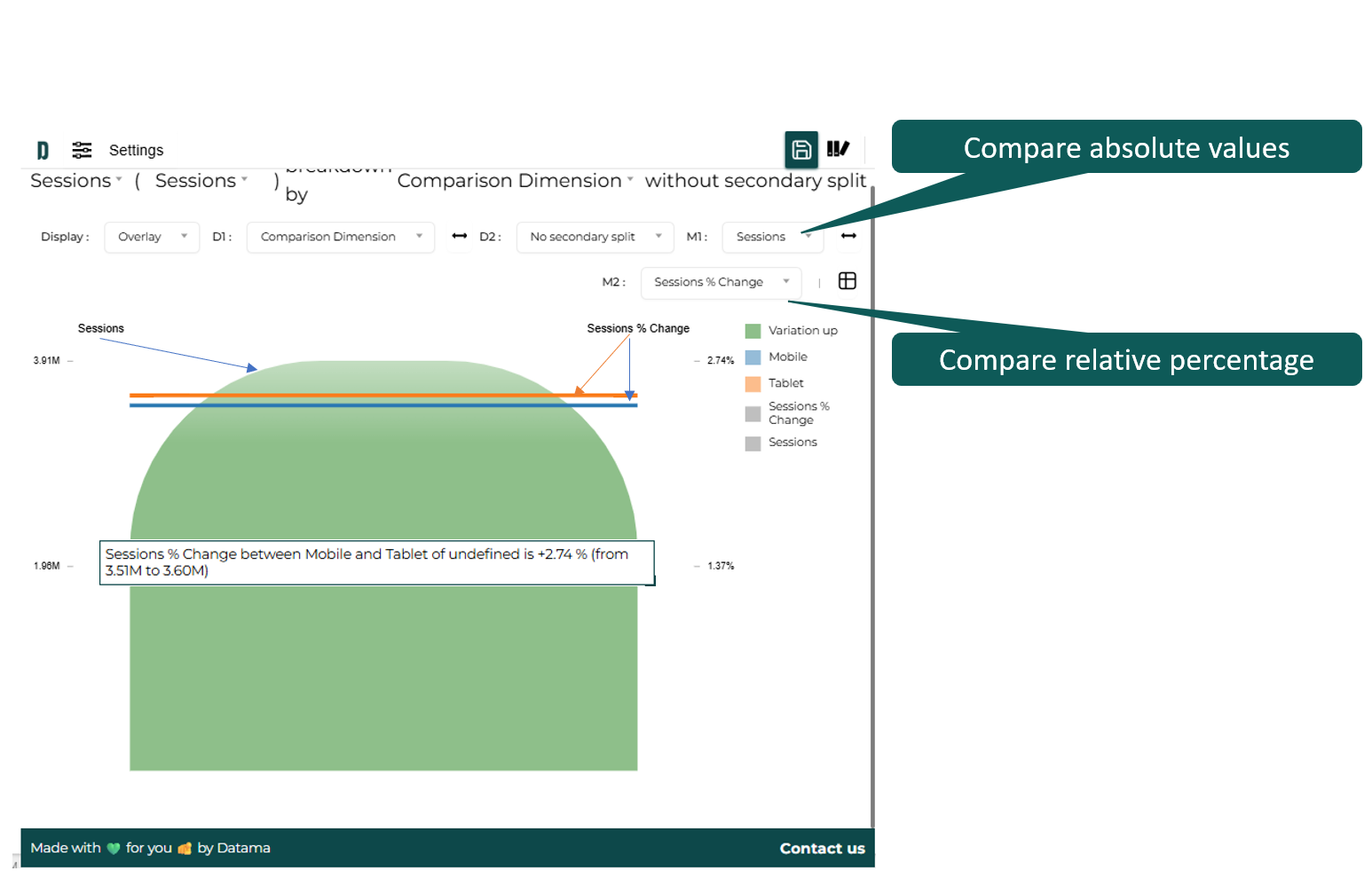
4. KPI change in Absolute value or Percentage: For comparisons between segments or between time periods, Datama Explore allows you to show the variations either as absolute differences or as percent changes, depending on the format that best fits your analysis.
3. Add the extension into your report
In order to use Datama in your report, you need to add a viz extension using a custom trex file.
Follow these steps to add Datama in your report :
- On Tableau Desktop, create worksheet
- In the “Marks” block, pull down the selector and choose “Add extension”
- Use the .trex file provided by Datama, or download it here
- Drag and drop columns into each proper mark type See getting started to learn more
- Metrics that you want to break down and to create your market equation, for instance the sales revenue.
- Dimensions on which you want to split your KPI(Sales revenue), for example, country.
- Datama sets up a relation (product of ratio) among metrics by default. Ensure they’re in a “funnel” sequence
Please refer to the full documentation to learn more about source structure
4. Get a free trial period
Datama extension in Tableau Viz allows you to benefit from all features.
On top of this, the paid version allows you to
- Remove Datama Branding (Background logo and free pop in)
- Let any other viewer of your dashboard to see Datama’s extension
You can get a free trial period of 7 days allowing you to test the full version of the extension by following these steps :
- Click on “Trial version” link of Datama footer
- Click on “Upgrade”
- Create your Datama account
- Get your Trial extension with no engagement, and no credit card required
- Add the licence key to the the extension by clicking on the “Format extension” button in the Marks pannel
See here our different plans.
5. Getting started
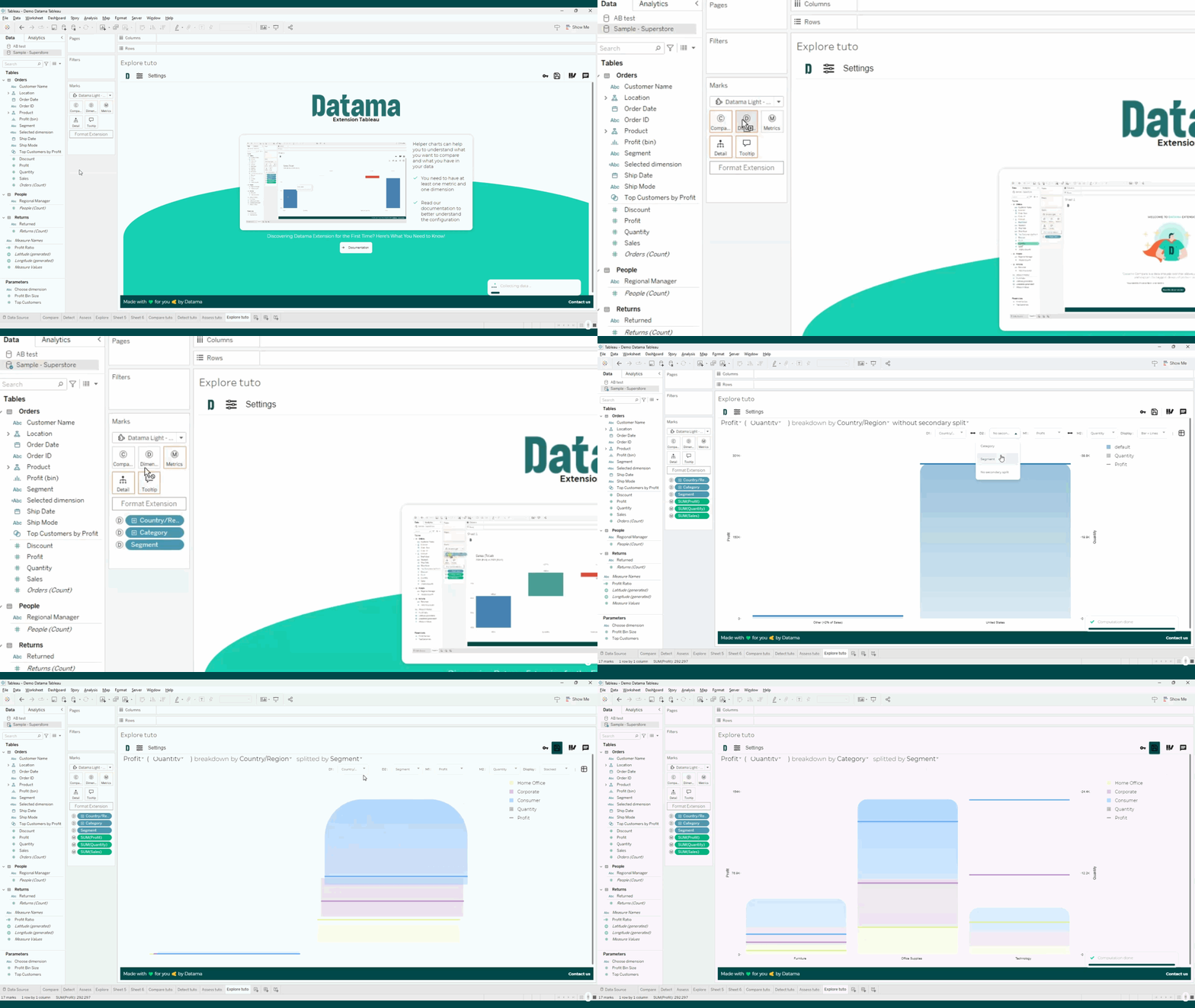
Once you’ve imported the extension, you can select and drop dimensions and metrics you want into left setting panel as below:
You can also make full use of features by setting up as below Datama Explore:
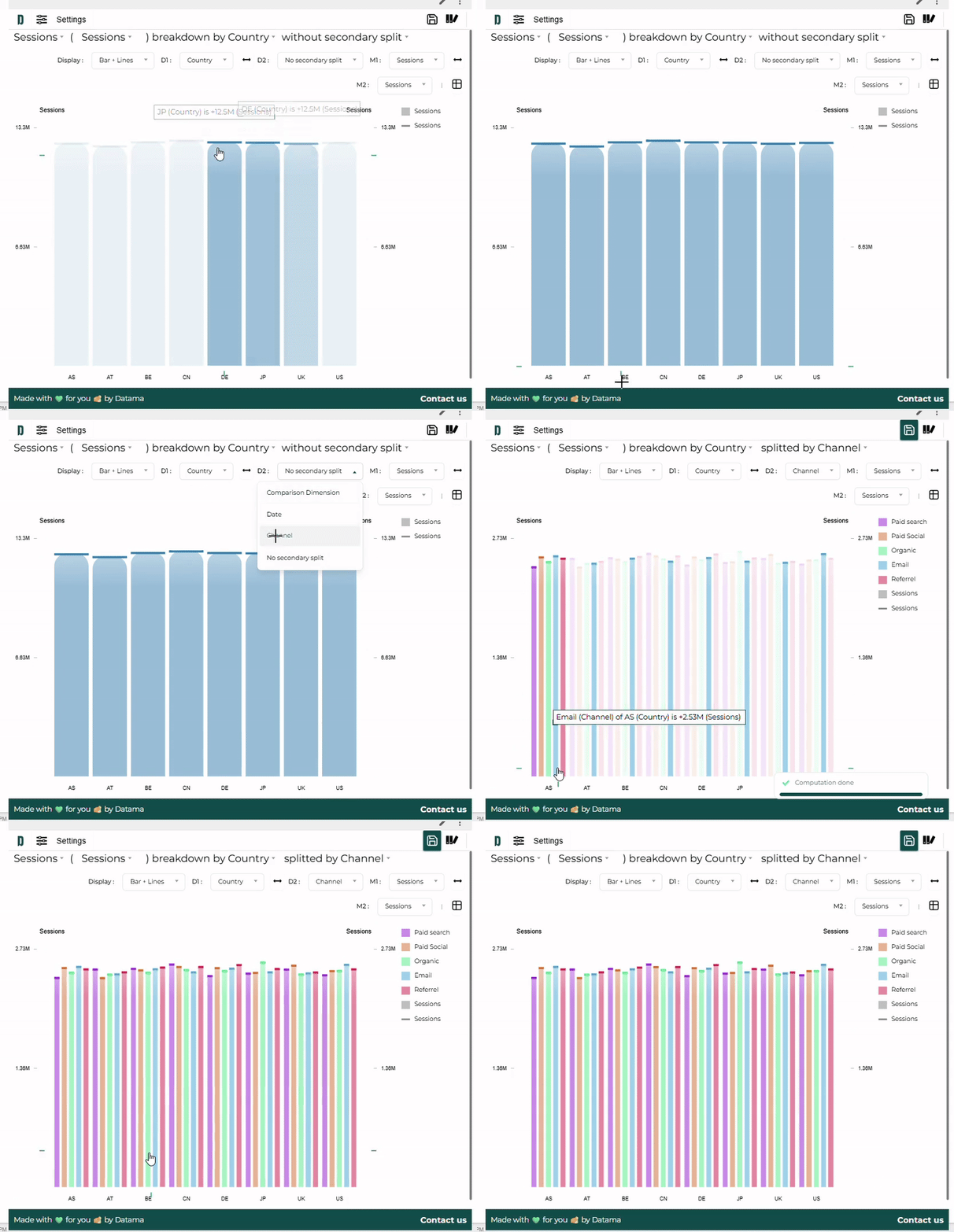
- Dimension and second breakdown: Datama Explore lets you break down every metric in your dataset across any available dimension. You can also drill down dimension-by-dimension: for instance, start by breaking down product sales by Country in D1. If you want to focus on the UK, you can then introduce a second breakdown dimension in D2—such as Channel, Device, or any other available dimension—to refine the analysis.
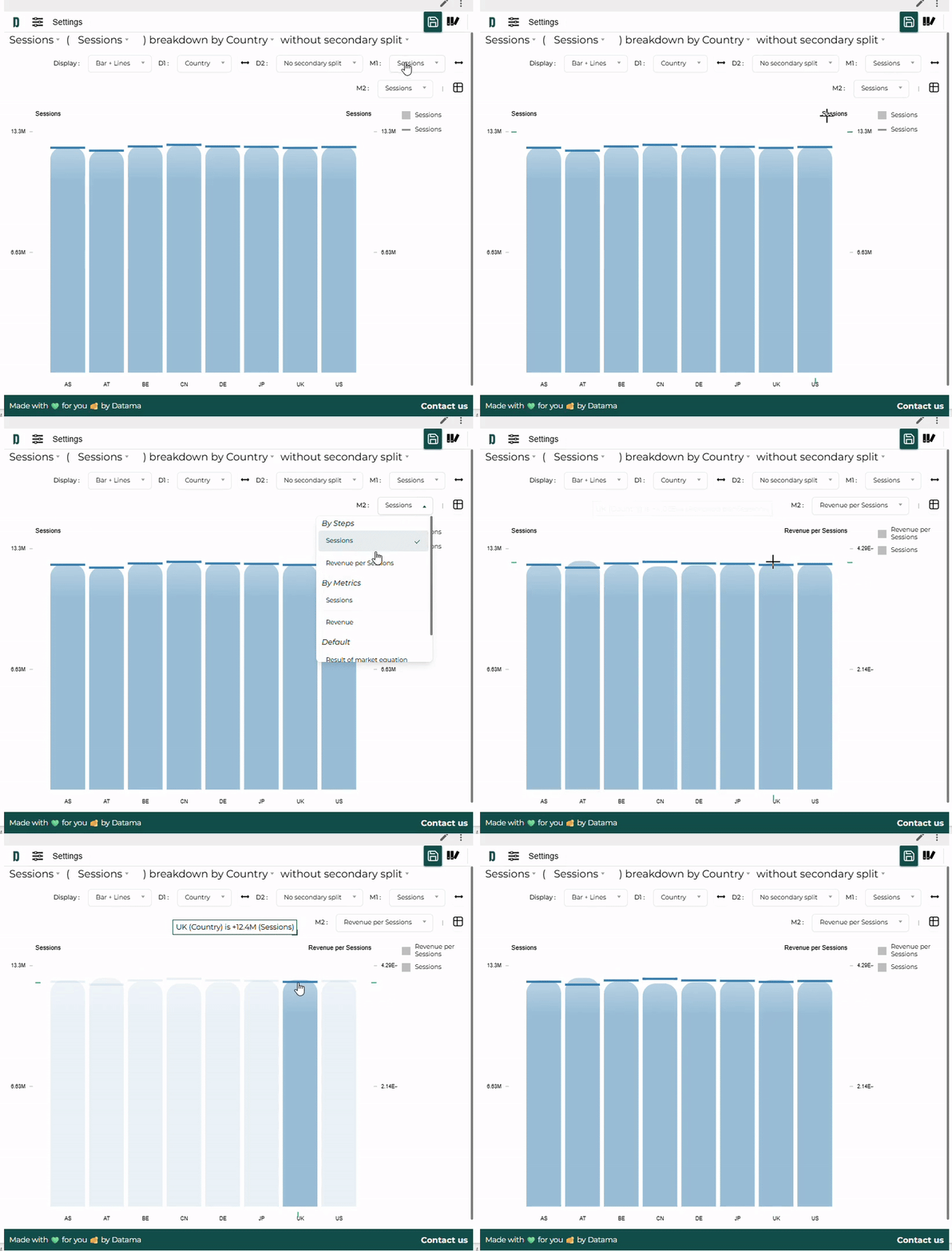
- Second metric: Datama Explore also supports comparing two KPIs side by side. Simply add a second metric in M2. For example, you can define M1 = Sessions and M2 = ABV to visualize how the two metrics evolve across your chosen dimensions.
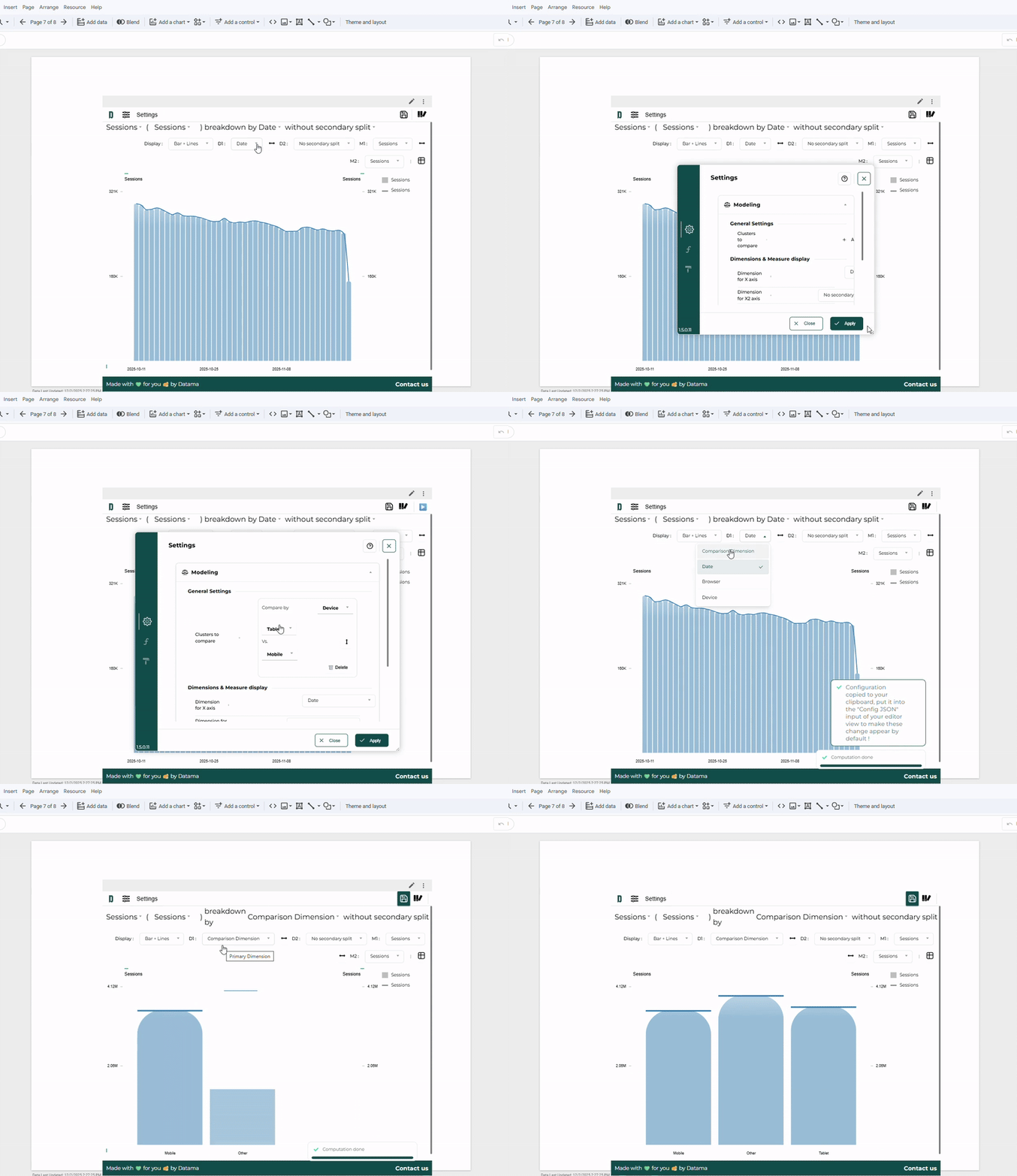
- Comparison dimension: When you set a comparison dimension—e.g., Device—and compare two segments such as Tablet vs. Mobile on the Sessions KPI, Datama Explore automatically builds a comparison dimension. This new dimension aggregates the metric values by the selected segments, including Mobile, Tablet, and any other device category.
- KPI change in Absolute value or Percentage: For comparisons between segments or between time periods, Datama Explore allows you to show the variations either as absolute differences or as percent changes, depending on the format that best fits your analysis.
6. Read your Analysis
To discover more about how to use Datama Detect, you can read our dedicated section
7. Advanced Usage
Follow this link to get the full view of the extension Settings.
8. Support and Resources
If you require assistance or have any questions, feel free to reach out. We’re here to help!
- 📧 Email: Send us an email at contact@Datama.fr for any inquiries or support issues.
- 🌐 Contact Form: Prefer to use a form? Fill out our online contact form, and we’ll get back to you promptly.