How to use Datama Explore (Light) in Excel
Using Datama Explore as a Excel extension is a great way to make your report more insightful with the benefits of both.
1. Overview
This document provides detailed documentation for the “Datama Explore” plugin, a powerful extension for Excel. This plugin enhances data analysis capabilities by breaking down any KPI or sub KPI by any dimension in your dataset.
Below is a short intro video
2. Features
-
1. Dimension and second breakdown: Datama Explore lets you break down every metric in your dataset across any available dimension. You can also drill down dimension-by-dimension: for instance, start by breaking down product sales by Country in D1. If you want to focus on the UK, you can then introduce a second breakdown dimension in D2—such as Channel, Device, or any other available dimension—to refine the analysis.
-
2. Second metric: Datama Explore also supports comparing two KPIs side by side. Simply add a second metric in M2. For example, you can define M1 = Sessions and M2 = ABV to visualize how the two metrics evolve across your chosen dimensions.
-
3. Comparison dimension: When you set a comparison dimension—e.g., Device—and compare two segments such as Tablet vs. Mobile on the Sessions KPI, Datama Explore automatically builds a comparison dimension. This new dimension aggregates the metric values by the selected segments, including Mobile, Tablet, and any other device category.
-
4. KPI change in Absolute value or Percentage: For comparisons between segments or between time periods, Datama Explore allows you to show the variations either as absolute differences or as percent changes, depending on the format that best fits your analysis.
3. Add the extension into your Spreadsheet
Datama Explore is an official extension of Excel. Install from the Microsoft AppSource listing, or from Excel click Home > Add-ins and search for Datama Explore. If your Microsoft account and 365 subscription is managed at the organization level, you might need to involve the manager of the workspace to be able to install the extension properly.
4. Get a free trial period
Datama extension in Excel allows you to benefit from all features.
On top of this, the paid version allows you to
- Remove Datama Branding (Background logo and free pop in)
- Save your settings to find them back when you or others reload the page
You can get a free trial period of 7 days allowing you to test the full version of the extension by following these steps :
- Click on “Trial version” link of Datama footer
- Click on “Upgrade”
- Create your Datama account
- Get your Trial extension with no engagement, and no credit card required
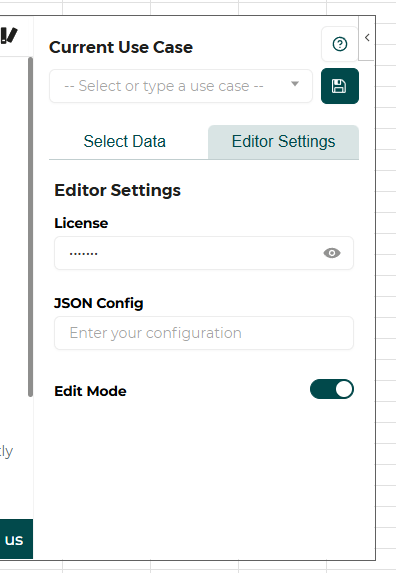
- Add the licence key to the extension by clicking on on the “Editor Settings” tab and Paste your licence key
5. Getting started
Once you’ve added the extension, here is how you can use it.
1. First think about your use case: You need first to consider which KPI you want to analyse and what are the steps that lead to the main KPI.
2. Prepare your dataset: The dataset required for Datama is essentially a Pivot table: an aggregated dataset with metrics aggregated on a set of dimensions. 4 steps are needed to properly set your dataset.
- Main KPI: Define the main KPI you want to compare (e.g. Revenue, Leads, Margin…)
- Comparison Dimensions: Define on which elements you want to compare your KPI (e.g. Period: Compare Month over Month, Country: Compare one country to the other…)
- by default, Datama will select the first two elements of your dimension, or split a date range in two.
- Steps: Define the steps that correspond to the equation that lead to your main KPI. For example (eCommerce funnel, or Finance funnel) See dataset examples
- To better define your steps (or metric equation), you can read our dedicated article.
- Explanation dimensions: Include Dimensions that will be used to explain the variations of your performance. Each variation will have an interest score to see how important they are to explain your variations.
3. Launch the extension: Click on the extension pane, select “Datama Explore” and on the right side panel, make sure the proper range of data prepared is selected. Dimensions and Metrics should be automatically identified by Datama, but you can adjust this if required.
4. Custom settings: Click on the “Settings” icon on the top right corner of Datama’s widget. You can adjust the methodology for comparison explanation and define which metric you want to analyse in the market equation pane. Learn more about settings
5. [Paid user only] Save settings: Once you’re satisfied with your settings, click apply or the “Save” button on the top right corner of Datama’s extension. The settings will be automatically saved in the Config JSON input of the Editor Setting tab in the right side panel.
6. [Paid user only] Leave edit mode: In the Edit Settings tab, untick the “Edit mode” toggle. Default viewers won’t see the top header and footer anymore, for a smoother experience.
6. Read your Analysis
- Performance Overview: Each blue bar represents the performance of your main KPI, using your chosen comparison dimension. helping you quickly gauge performance across different segments.
- Intermediary step analysis: Intermediary steps depict the ratio evolution of your KPI. The impact is quantified in the units of your main KPI, allowing for a consistent measurement of progress or regression.
- By default, the most interesting dimension will be selected for this zoomed step. You can change the selected dimension for this zoomed step by changing right clicking on the boxes of a segment and select the appropriate dimension in the “split by”. You can unzoom by clicking on other steps or clicking on the box again.
- In-Depth exploration: By interacting with a step—simply click on it—you’ll delve into the underlying dimensions that are most influential in explaining your performance variances at each stage of your funnel.
To discover more about how to read a Waterfall, you can read our dedicated section
7. Sample datasets
Use a Microsoft Excel workbook with the Datama Explore add-in and try the extension on your own data or the sample dataset here (Download as Excel). The free trial version includes limited access to some advanced features.
8. Advanced Usage
Follow this link to get the full view of the extension Settings available in this extension.
9. Get more insights
Explore related documentation to understand how to generate insights in Datama Explore
10. Support and Resources
If you require assistance or have any questions, feel free to reach out. We’re here to help!
- 📧 Email: Send us an email at contact@datama.fr for any inquiries or support issues.
- 🌐 Contact Form: Prefer to use a form? Fill out our online contact form, and we’ll get back to you promptly.
- 🔒 Privacy Policy: Review the Datama Explore for Excel Add-in Privacy Policy