Market equation Sub-steps
Related: What If · Settings › Market Equation
Purpose
A market equation step can own sub-steps, recursively. Example:
Revenue
└── = Traffic
├── × Conversion Rate
│   ├── = Add to Cart Rate
│   └── × Cart to Order Rate
└── × AOV
Two problems this solves:
- Funnel stages that are themselves small equations can stay nested instead of being flattened by hand into level-0 steps.
- A step that is not a simple ratio has no valid dimensional decomposition — splitting it by dimension would be wrong. Sub-steps give a valid decomposition axis (Split by › Sub-steps).
Not the same as Sub-pillars
| Sub-steps | Sub-pillars | |
|---|---|---|
| What | Nested structure of the market equation | Synthetic checkpoints drawn on the waterfall |
| Changes the KPI math? | Yes | No |
| How to create | Market Equation card editor | Right-click → Add pillar |
| Docs | This page | Settings › Waterfall › Pillars |
Card editor
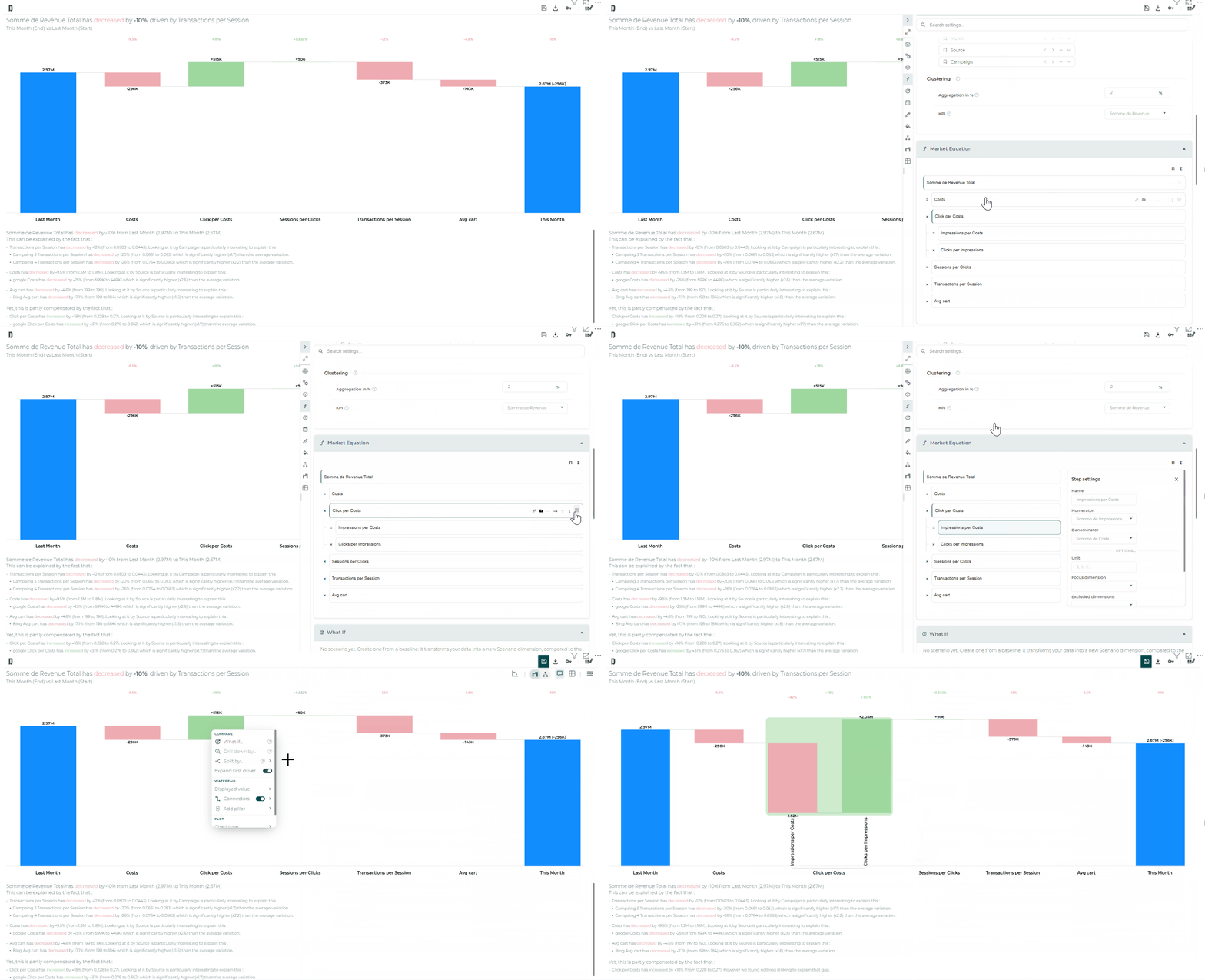
Open Settings › Market Equation. Steps are shown as an indented card outline (same interaction pattern as dimension hierarchy):
- The total / Main KPI is the first card; children are indented below.
- Operator joining siblings (
=,×,+, …) sits in the gutter when each child is used once; otherwise edit the formula on the card (names in brackets, e.g.[Add to Cart Rate]). - Hover a card for actions: Edit this step, Add a sub-step, indent / outdent / reorder, delete.
- Edit this step (or click the card label) opens the detail panel: name, formula (numerator / denominator or equation over children), optional unit, focus dimension, excluded dimensions, emoji.
- Shortcuts make it a product / a sum remain available at the top right.
- Validation: errors (blocking) vs warnings (e.g. duplicate numerators in a product) are shown with distinct colours on the banner, card, and field.
Expand the settings panel to full width when editing a deep tree.
Step types (what you can drill)
| Type | Meaning | Drill on waterfall |
|---|---|---|
| Basic | Leaf ratio (numerator / denominator) | Dimensions as usual |
| Simplifiable | Product / sum / result equal to a source column | Dimensions and Sub-steps |
| Non-simplifiable | Any other composite | Sub-steps only (dimensions are excluded automatically) |
Composite steps that simplify are computed like a plain ratio for the rest of the pipeline (mix / performance, covariance, simulation). Non-simplifiable composites keep an empty numerator and resolve their value from the sub-step tree.
Split by Sub-steps on the waterfall
On a composite step bar (typically in Steps then Dimensions):
- Right-click the bar → Split by… › Sub-steps.
- The bar opens into its child sub-steps; impacts are rescaled to the parent step.
- Global covariance stays defined at the top equation — it is not re-derived inside the sub-tree.
For a non-simplifiable step, Sub-steps is the only split entry offered.
Tips
- Prefer meaningful step names — formulas reference steps by name, and names must be unique among steps (the Main KPI may reuse a step label).
- Use Sub-steps when a ratio is itself a mini-funnel; use Sub-pillars when you only need a storytelling checkpoint.
- Combine with What If to simulate an impact on a nested step.