Artificial Intelligence
Using OpenAi in Datama Solutions to enhance your comments
1. Enhanced comments
Datama generates an analysis and provides sentences that explain variations in KPIs. By leveraging the power of AI, Datama enhances these explanations with contextualized comments, improving the depth and clarity of the analysis.
1.1. How it works
1.1.1. Initial comments
Datama initially processes the raw data to identify and quantify variations in key performance indicators (KPIs). The system generates insights that explain these variations.
1.1.2. Integration with OpenAI:
On every comments, a ✨ CTA is available, it allows you to start a conversation and then activate the enhance comment. Datama initially processes the raw data of your dataset and of the calendars connected to your workbook to identify and quantify variations in key performance indicators (KPIs) and possible context with the events provided in the calendars. The generated insights are then passed through OpenAI’s language model. OpenAI enhances these narratives by adding contextual insights, ensuring the explanations are comprehensive and tailored to the specific dataset and business context.
Step one : Accept Terms & Conditions of Open Ai (once per account)
When clicking on the OpenAi button sparkle icon next to comments, you will be prompted to accept OpenAi ToS whenever they change. You will need to accept those to continue.
Step two : Activate the AI comment
For each comment you want to enhance click on the ✨ CTA, and a AI chat window will pop. A first comment will be generated base on the data available in the analysis and the calendar events of the time period and filters you are currently using in your use case. You can adjust the comment with some prompt to give him more context, a tone to use … Once you get the comment format you expected you can activate the feature by clicking on “Use AI Comment”.
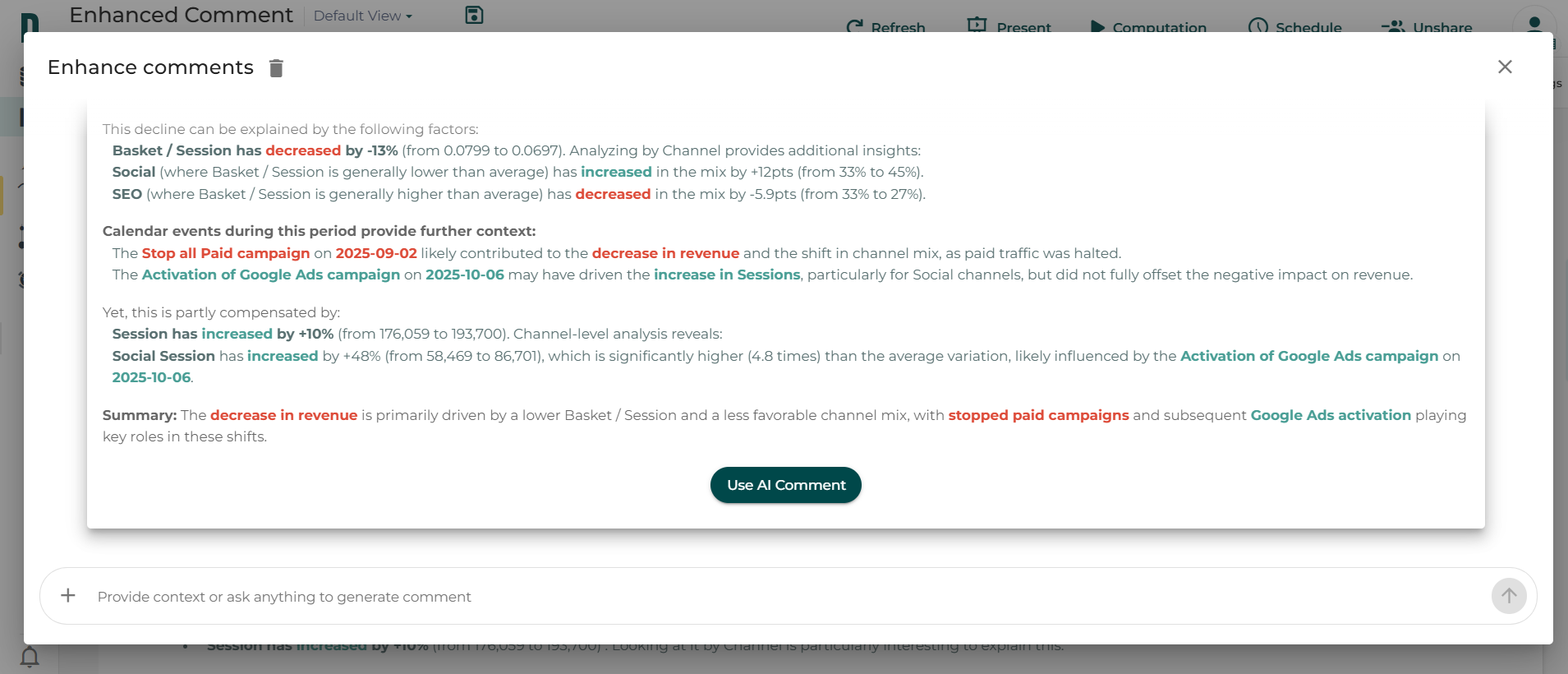
Now AI comment will be generated every time you update your workbook and it will also be integrated in your different schedule exports.
If you want the comment to be focus on only on calendar you can send only the calendar you want to be used by selecting it in the ➕ to add attached document (all calendar connected to your workbook are listed here). Until you don’t modify the instruction, the comment will be focus only on this calendar.
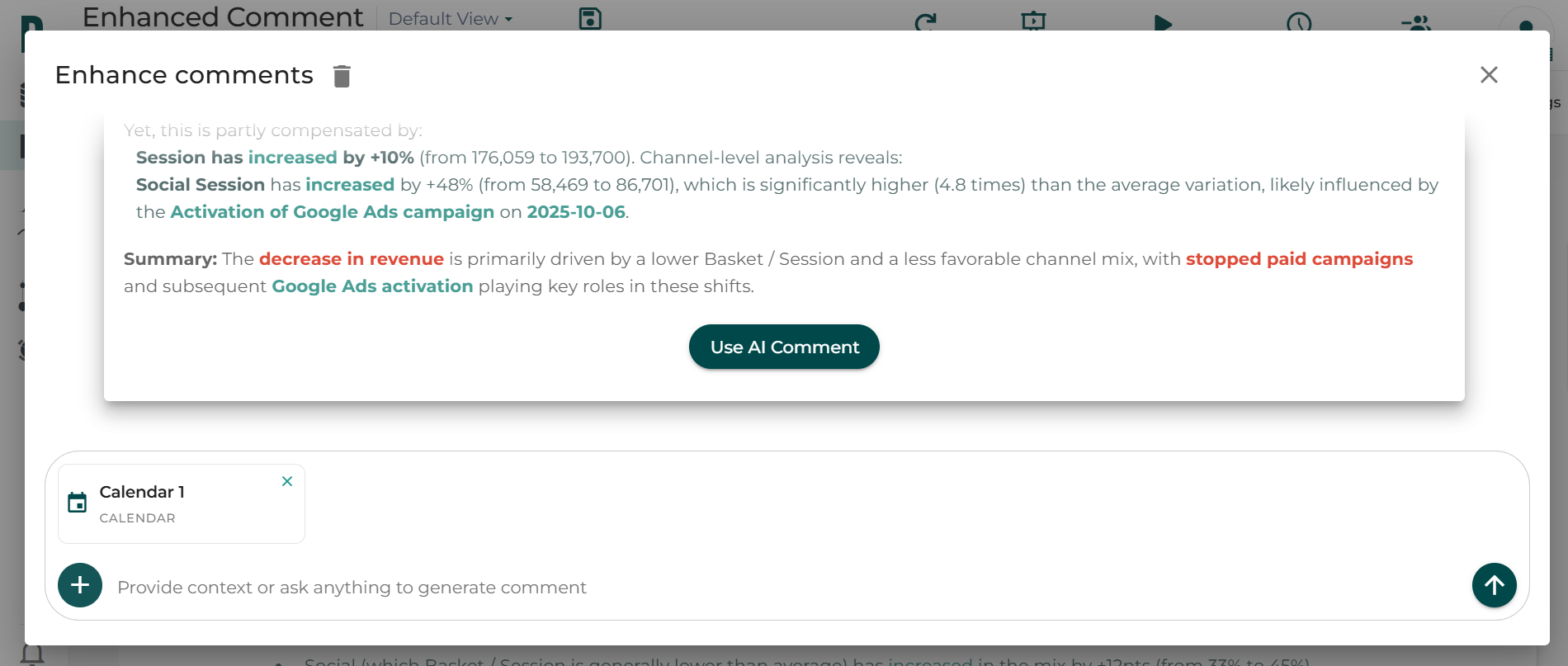
Step three : Unable AI comment
When a AI comment is activated and you want to disable it, you just need to re-open the AI chat window clicking on the ✨ CTA and click on “Disable AI comment”
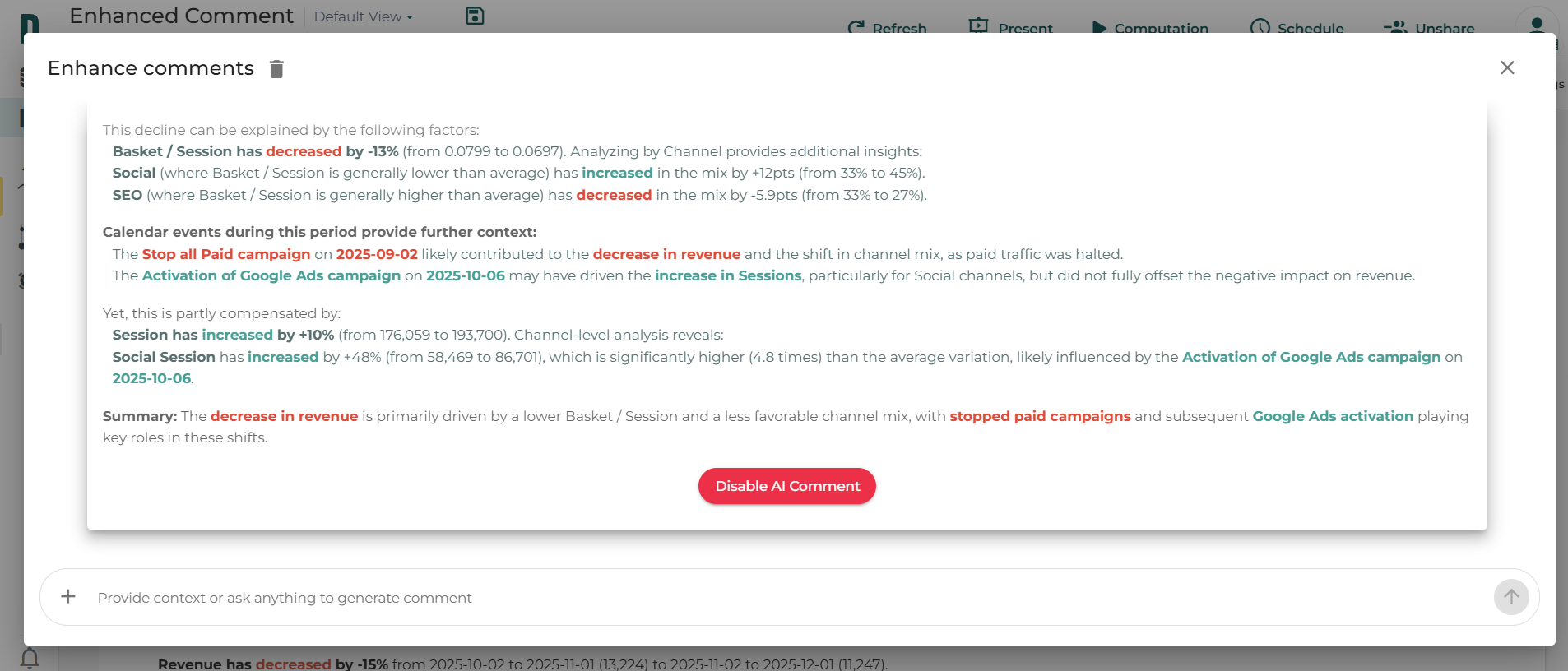
Note that if you activate various comments on your workbook and want them all to be disactivated, you’ll have to repeat the operation for each comment and on each view where it was activated.
To use this service, you’ll need to accept OpenAi Terms and conditions