Calendar creation
How to create your own calendar analysis in WebApp solutions?
This section explains how to create and integrate a calendar within the Datama Web App or Extensions. It covers the steps required to create or connect a calendar, associate it with a workbook, and use events to enrich analysis and AI insights.
Datama Calendar can be integrated in three different ways.
1. Add and connect your calendars in the WebApp
You can connect calendars directly inside the Datama WebApp from your Calendars page:
- From the Home page go in the side bar menu
- Via My account → Calendars
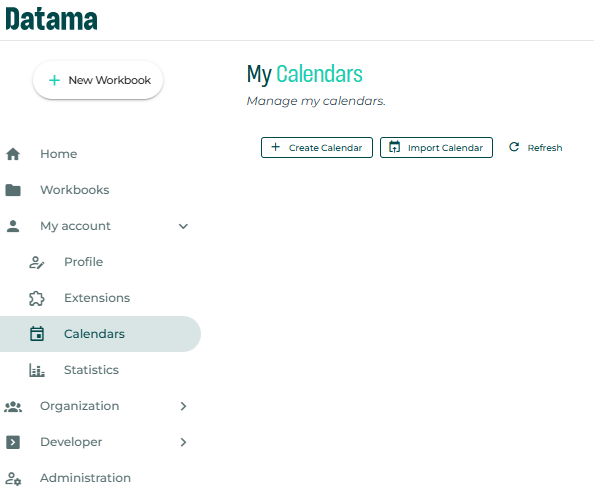
From here you’ll have to option connect it to an existing calendar threw the different connectors available in Datama or create it manualy.
Both options need a dataset with the following structure:
At minimum, your dataset should contain:
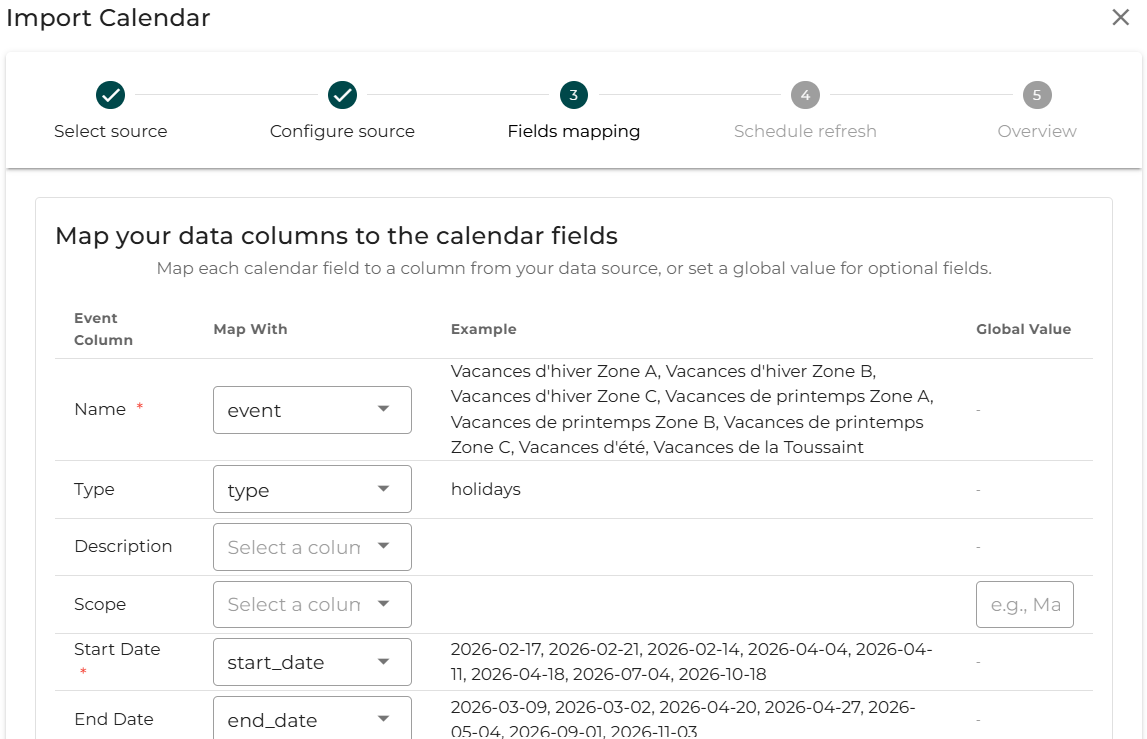
📅 Start date – when the event occurred
🏷️ Event name – short label for easy identification
Optionally
📅 End date – when the event occurred on a period you can identify the start date of the event and the when it’s ending is this field, if this field is empty by default the event is considered as a one day event.
🧩 Type – category (e.g., campaign, public holiday, internal launch)
📝 Description – additional context about the event
📊 Scope – a segment which allow you to apply the filters (e.g. you can have a Country Scope that allow when you filter on Switzerland to see the calendar events that impact only this segment). This field as also an impact on the Calendar interest score in the Compare integration.
1.1 Create your Calendar in the WebApp
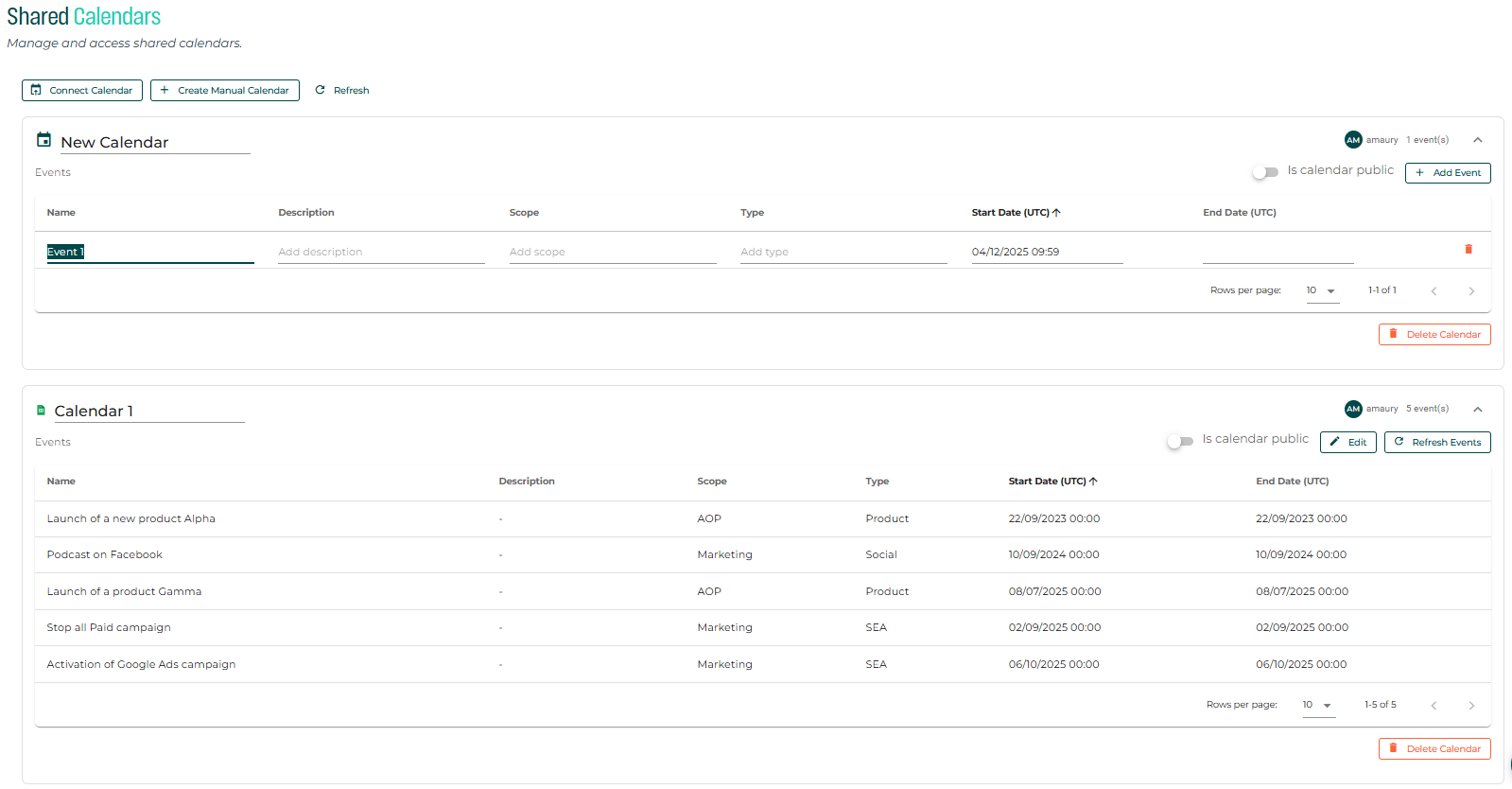
By clicking on the CTA “Connect Calendar”, you’ll be able to add your calendar following a few steps:
- Select your data source: different sources are available. It needs to have a dataset with the structure defined in the above section except for “Google Analytics Annotation” and “Calendar” which already have the required fields.
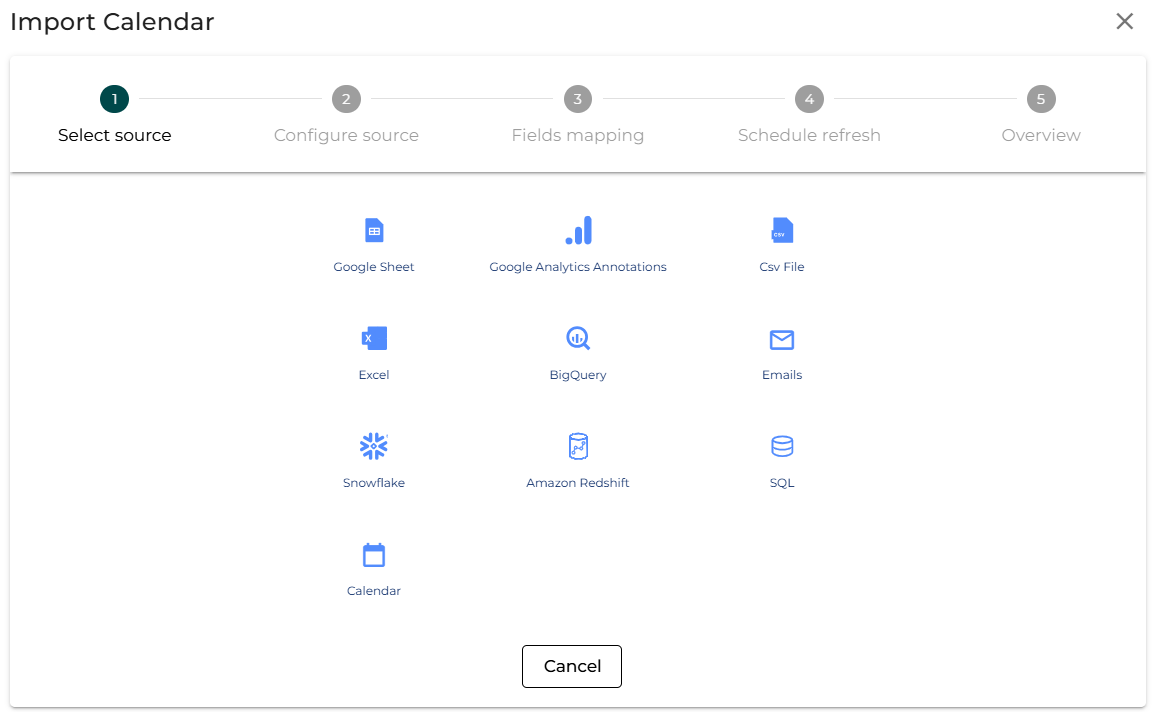
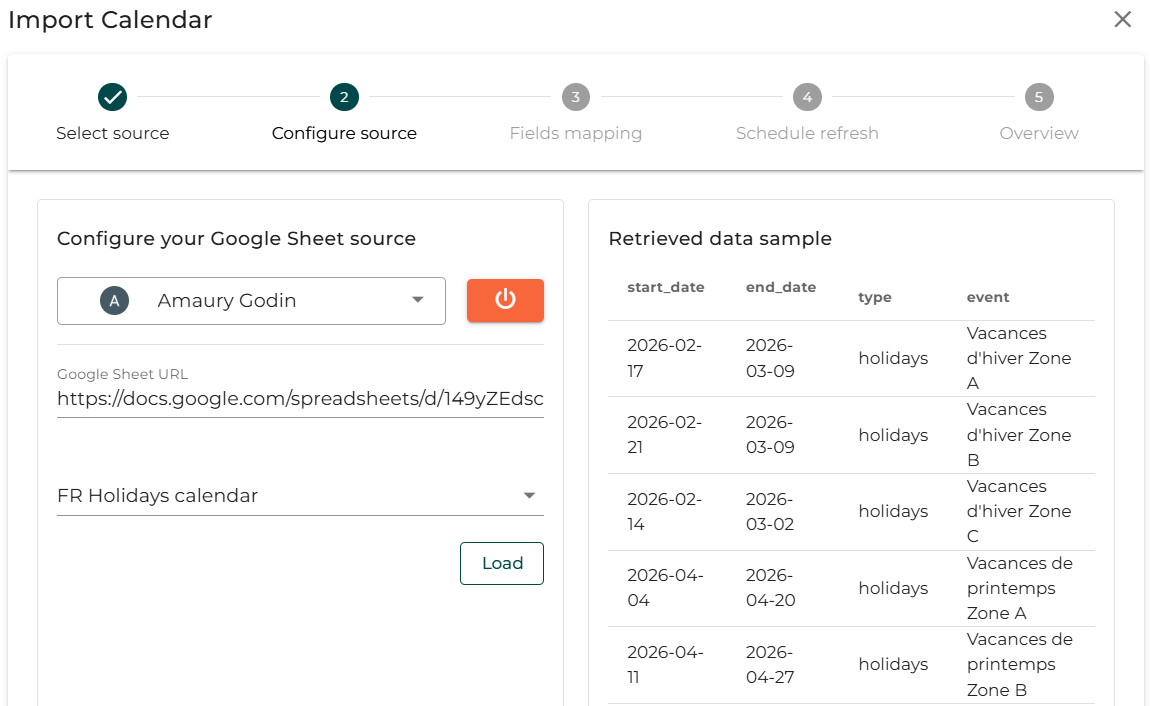
- Configure your source: depending on the source you choose you’ll have different information required like for Gsheet: the connection to a Google account, the spreadsheet URL you want to use, for BigQuery or Snowflakes: connection to your account, projects and the query to call the table …). When loaded a preview of your data is available in the right pannel.
- Map the fields: as mention above, this step allow to map each fields with the right columns of your dataset.
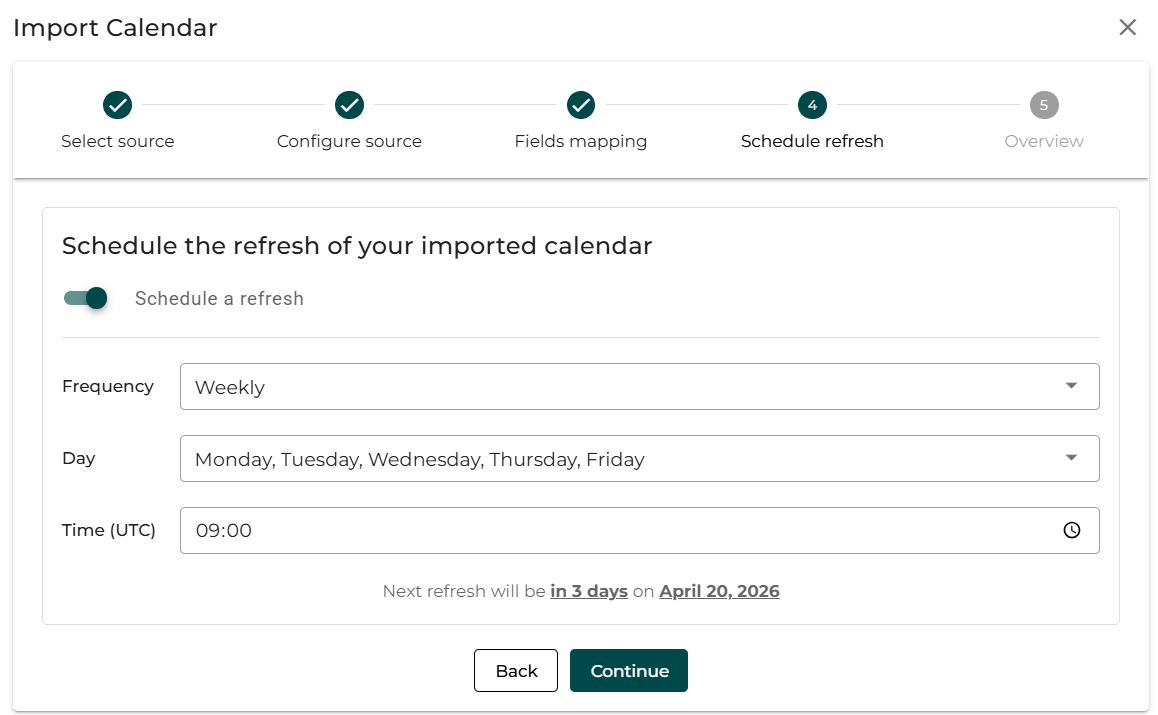
- Schedule a calendar refresh: this is an optional step that allows you to set how often your calendar data is updated for the workbooks in which you will use it.
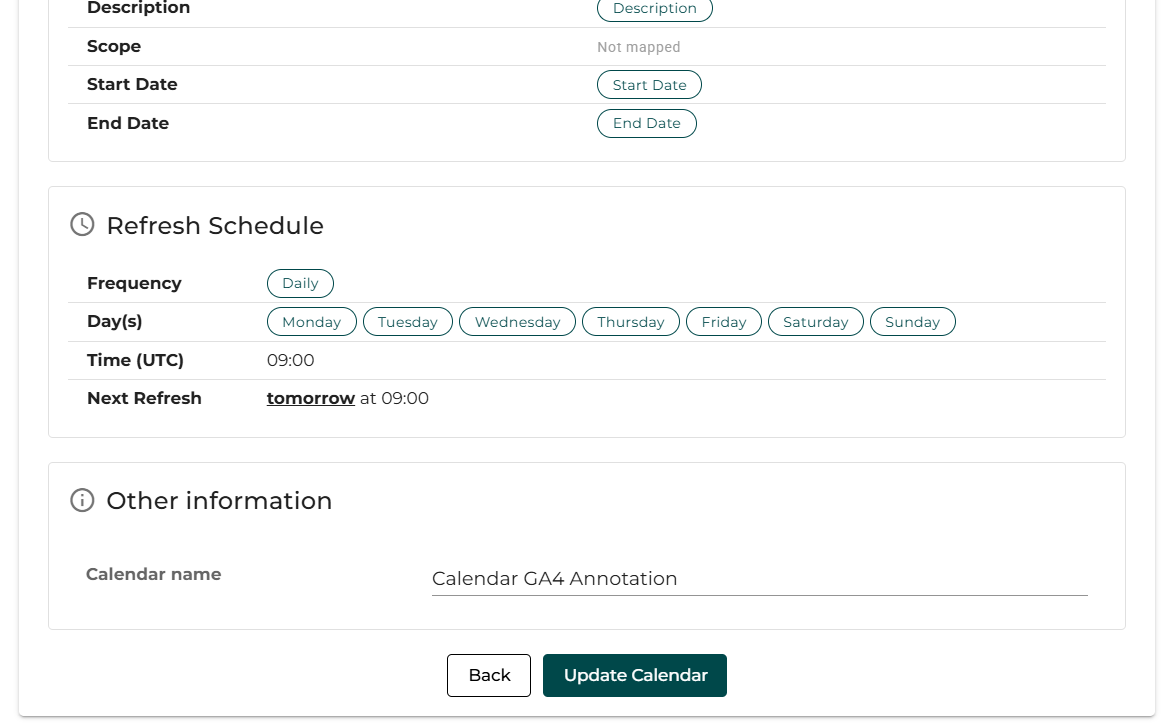
- And last an Overview summarize all the settings you made for final validation and give your calendar a name. Note that at any moment you can come back and edit your Calendar connection.
1.2 Create your Calendar in the WebApp
With “Create Manual Calendar” CTA, it allow you to add some events directly in the Datama calendar interface.
1.3 Connect your Calendar to your workbooks in the WebApp
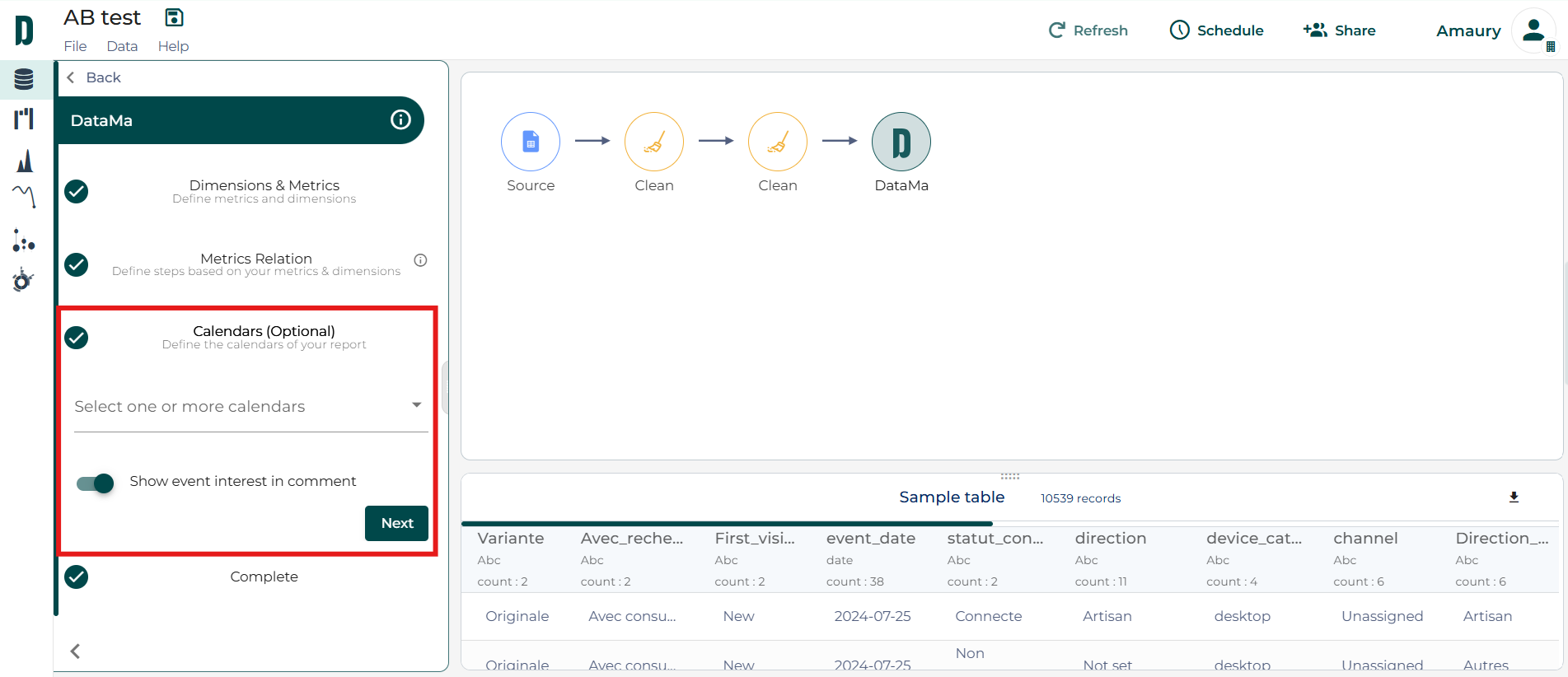
With a calendar created you can connect them to your workbook in Datama Prep clicking on the output block (the one with the “D”).
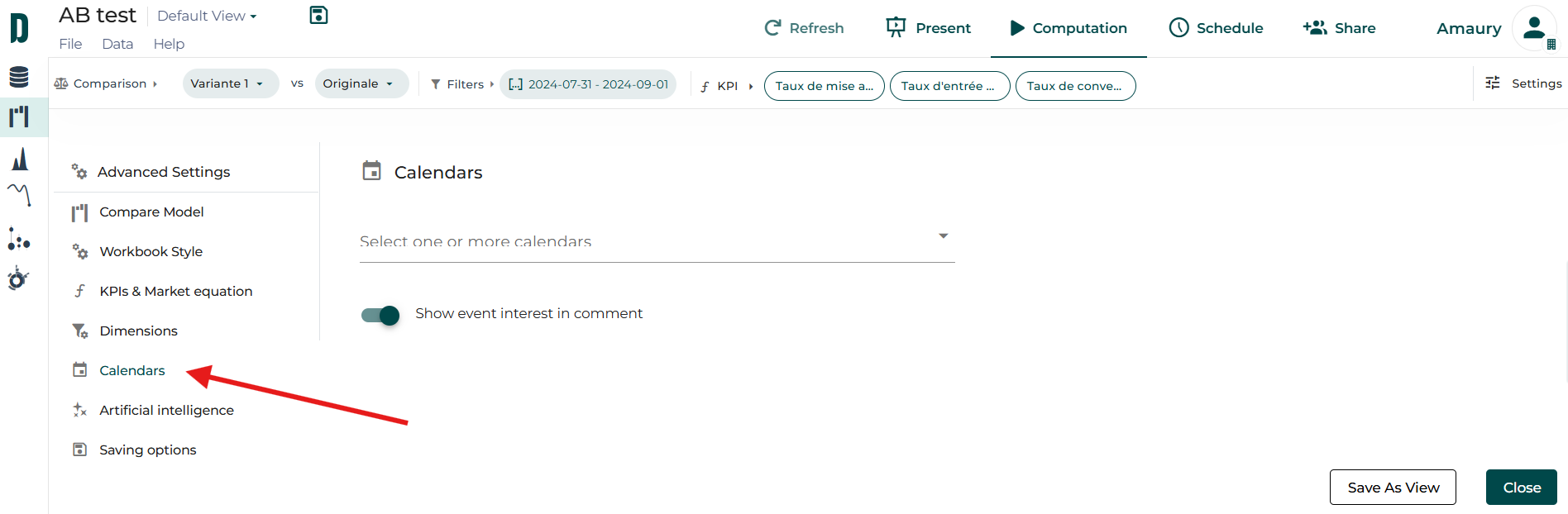
Or directly in your workbook settings, selecting the “Calendar” section:
2. Calendar live source
This option is only available in the Compare and Detect Light Extensions where you can connect the events available in your dataset as a Calendar dataset.
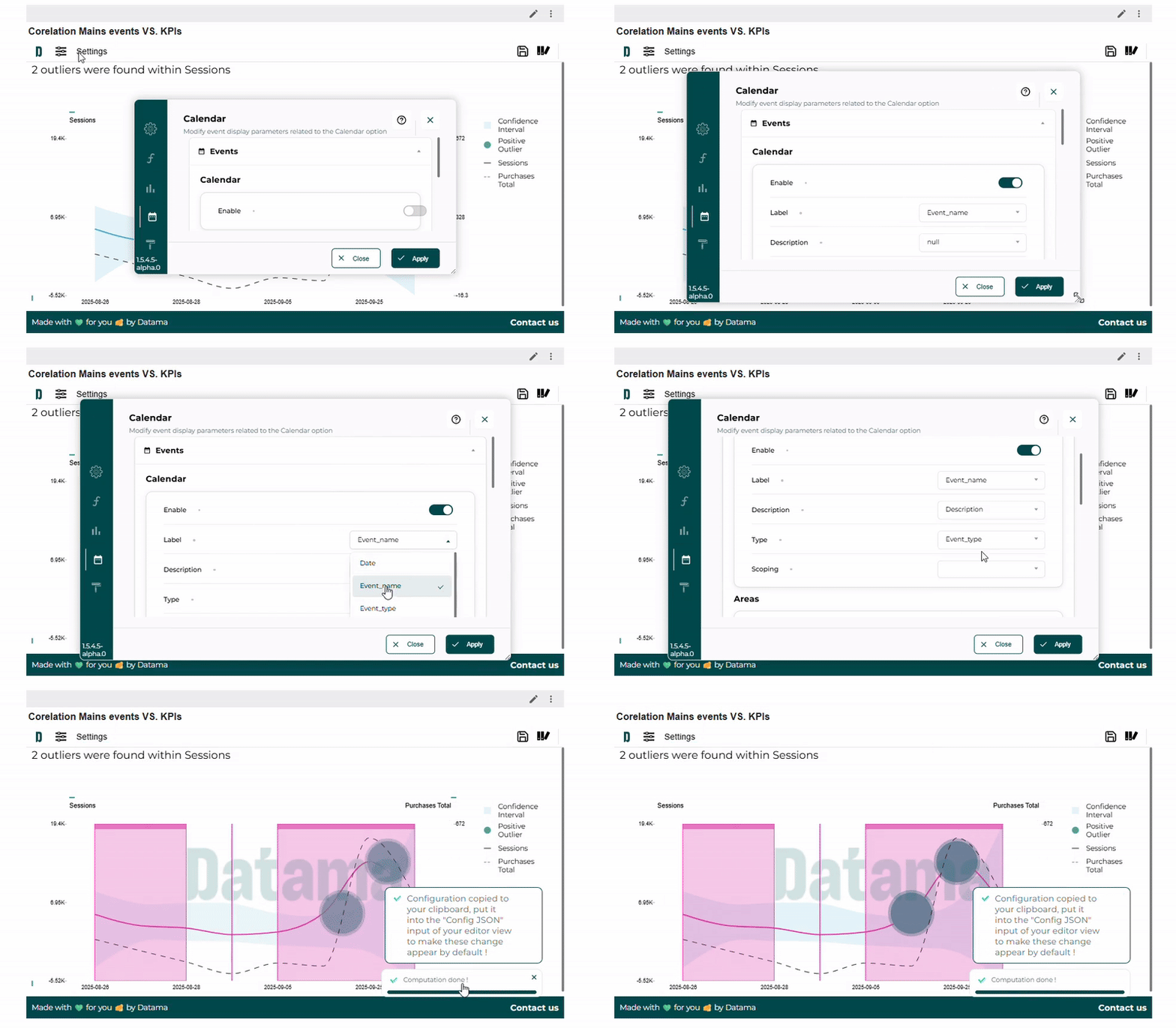
Going over your extension, you can go into “Settings”, in the settings modal, select the third option “Calendar”, if not enable the Calendar option, and in the “Select Calendar” field choose “Current data”.
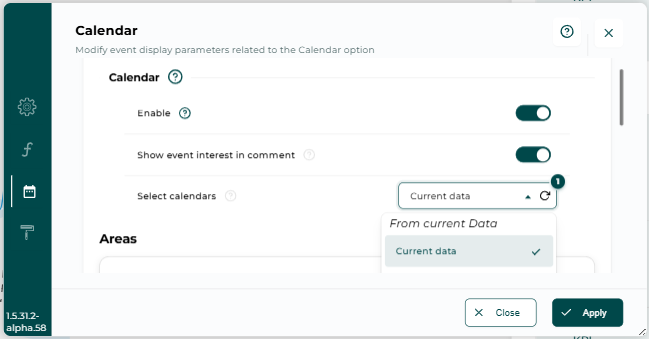
Note that in this fields with a Datama license, you’ll find all the Calendar you created/connected.
Once “Current data” selected, you’ll be able to map the events field with your current data
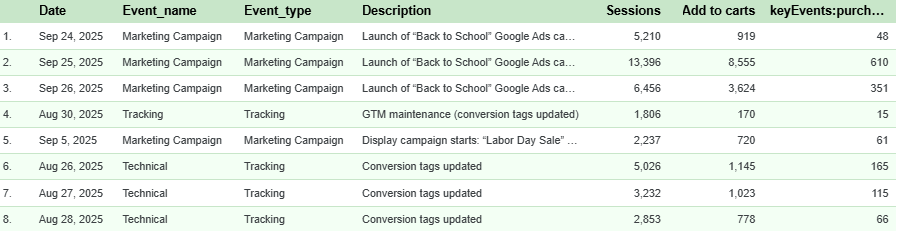
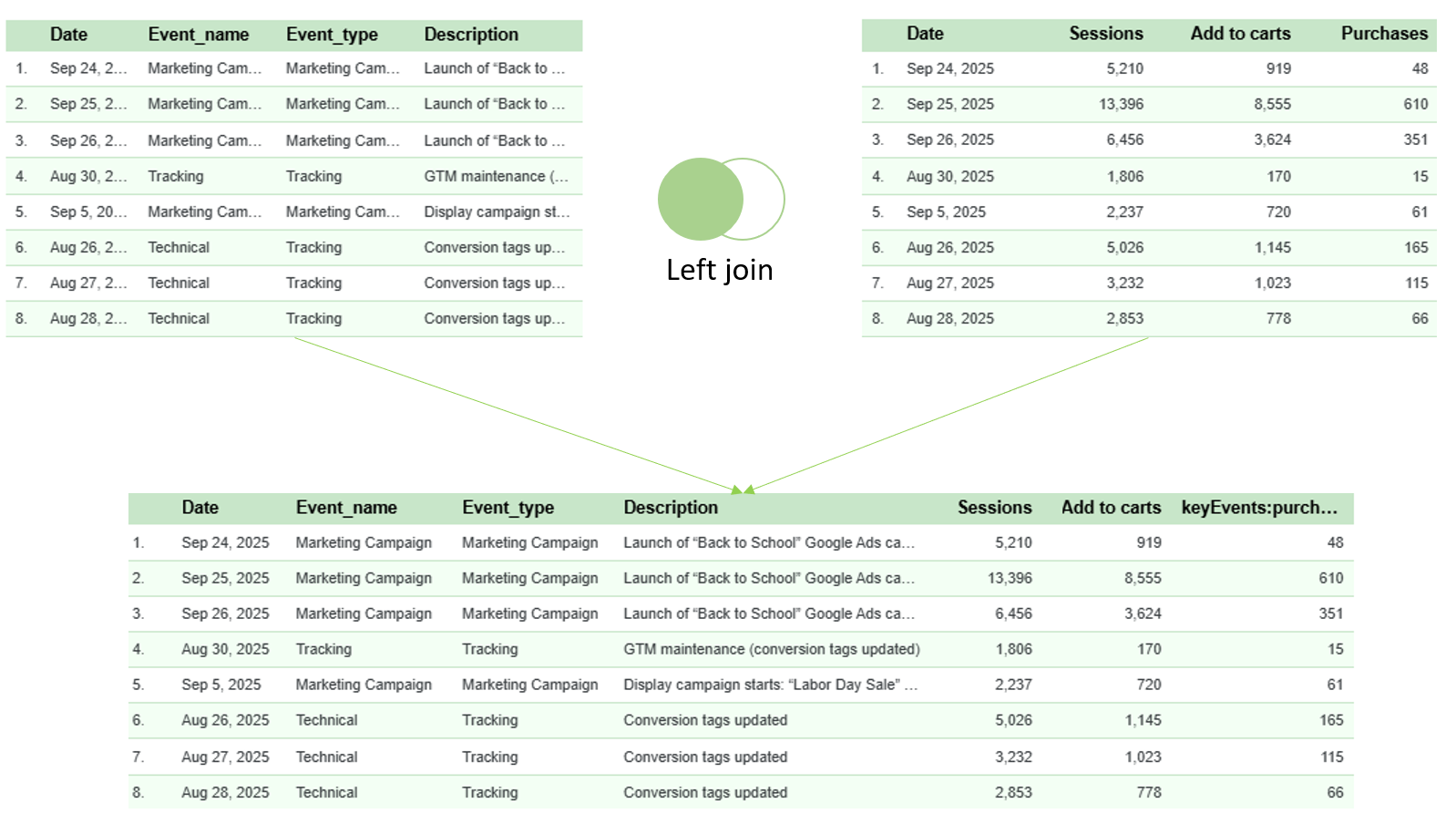
If you don’t already have an event dataset, you can easily create one by building a calendar table.
Use Date as the primary key, then left join it to your existing KPI table.
This way, every KPI record is linked to the corresponding event (if any) on that date — allowing you to visualize and analyze KPI variations alongside business or operational events.
3. Calendar from extension
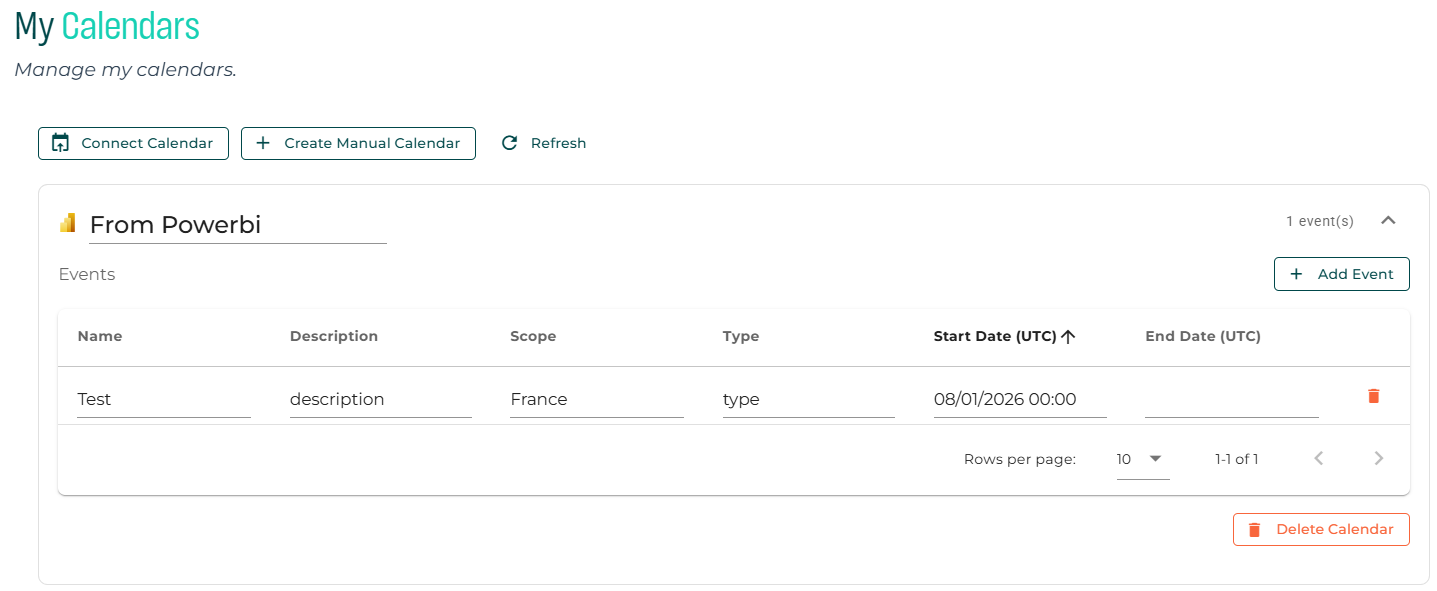
This option is only available in the Compare and Detect Light Extensions on Power BI or Tableau where you can create events and it will be reported in Datama Calendar as a calendar “from Tableau/Power BI).
-
On Compare Extension, right click on the start-end bar (the blue ones by default) and you can select add_event
-
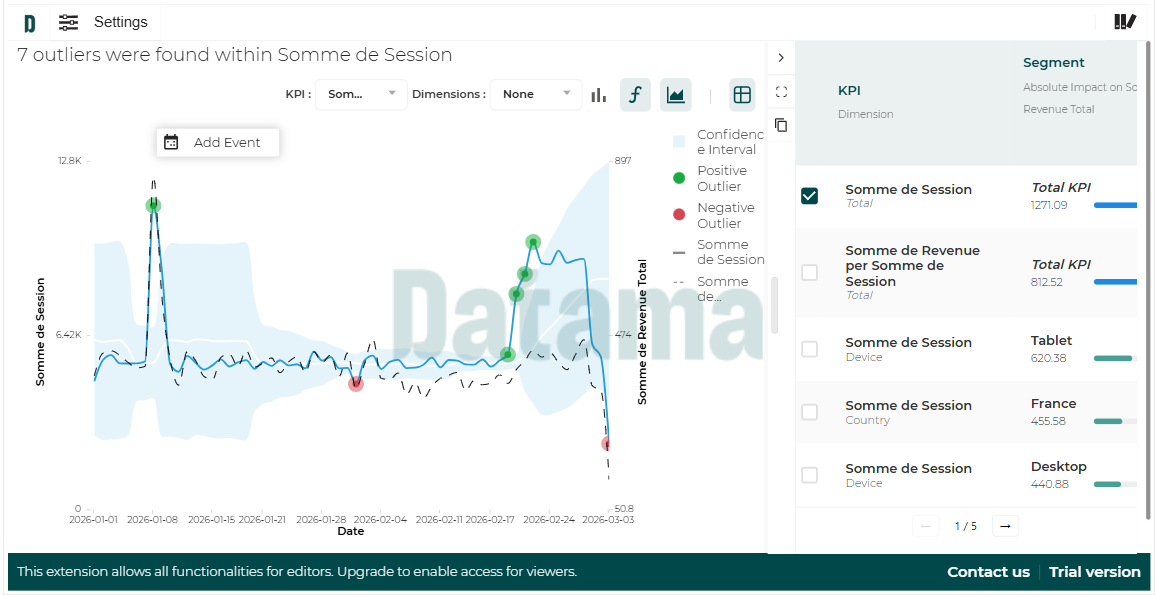
On Detect Extension, right click on a point and the option is available:
Then you can define the different fields associated to your event:
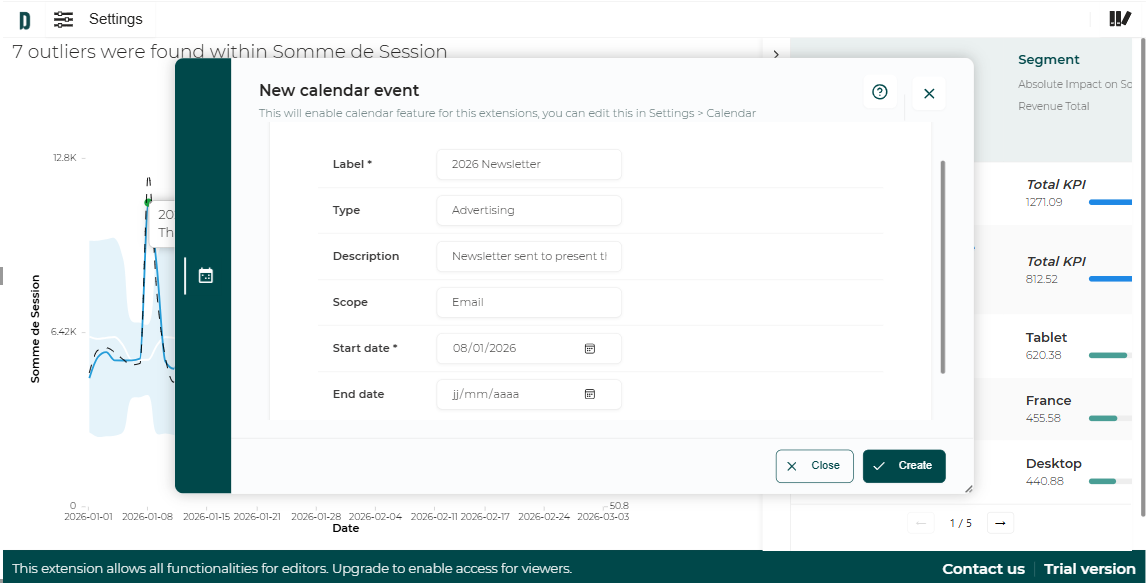
Once the event created, they are stored in a Calendar named “Calendar from ‘data visualization tool’” (where ‘data visualization tool’ is the name of your tool Power BI or Tableau) that you can find in Datama and call it on another use cases.