Calendar on WebApp
How to create your own calendar analysis in WebApp solutions?
This section explains how to create and integrate a calendar within the Datama Web App. It covers the steps required to create or connect a calendar, associate it with a workbook, and use events to enrich analysis and AI insights.
1.What is a calendar?
You’ll need a dataset that includes both event information and at least one business KPI to measure impact.
At minimum, your dataset should contain:
📅 Event date – when the event occurred
🏷️ Event name – short label for easy identification
Optionally
🧩 Event type – category (e.g., campaign, public holiday, internal launch)
📝 Event description – additional context about the event
📊 Metric (KPI) – a performance indicator to analyze (e.g., revenue, traffic, conversion rate)
You can enrich it with other dimensions (e.g., country, channel, product category) to make your analysis more granular. Below is an example.
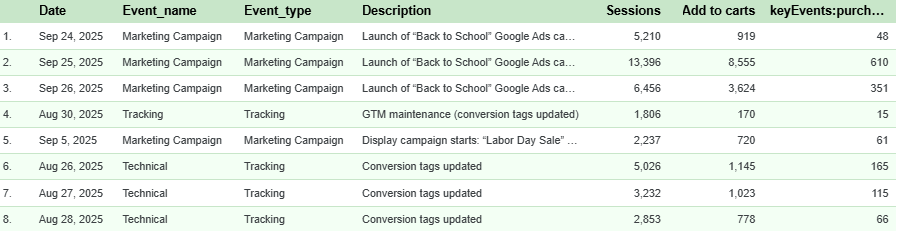
If you don’t already have an event dataset, you can easily create one by building a calendar table. If just needs a event date and an event name
2.Process in Datama
The feature is available in both Datama Compare and Datama Detect Web App. → Find the detailed intregration here
You can connect your dataset either through the Web version or directly via the extension version.
You can connect your dataset either through the Web version or directly via the extension version.
You can now create or connect calendars directly from your Calendars page.
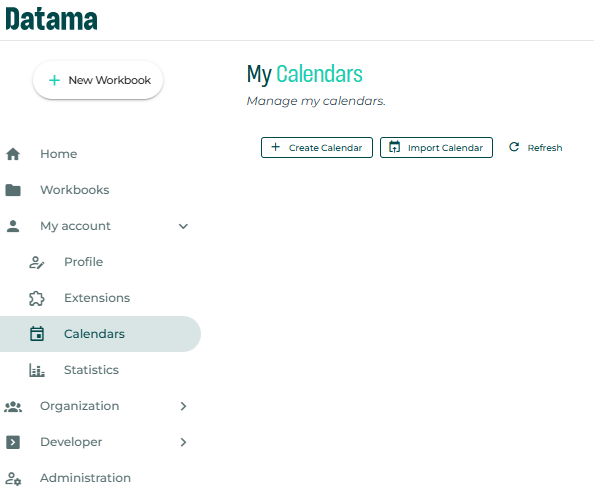
2.1 Create a calendar
You have two options to create a calendar.
First with “Create Manual Calendar”, this option allow you to add some events directly in the Datama calendar interface.
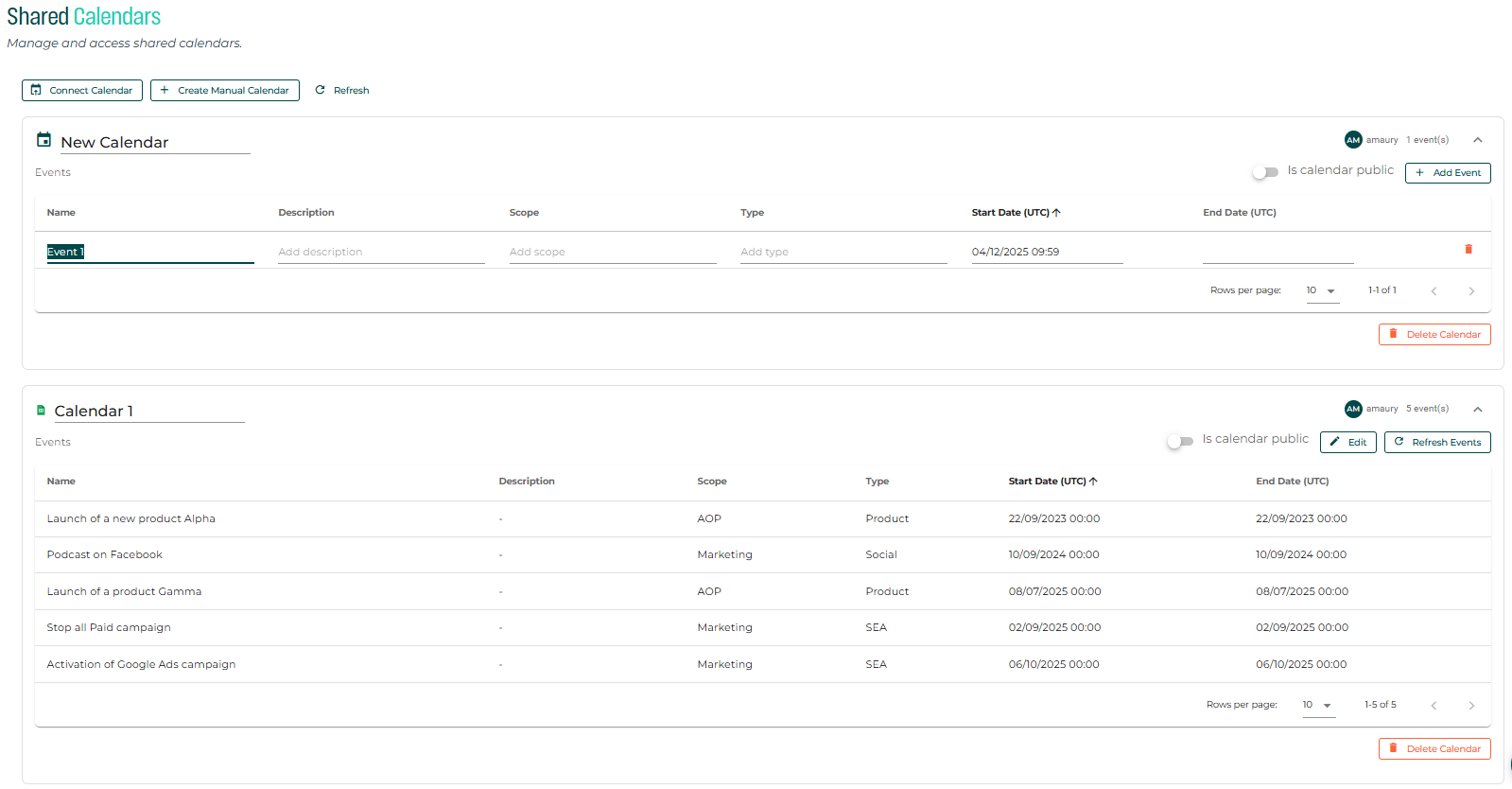
Else if you already have a calendar in another source, you can use the second option “Connect Calendar”
Calendars can be connected from any source already supported by Datama Prep import connectors, including:
- Google Sheets™ (GSheet)
- Google Calendar
- BigQuery
- Excel
- … and other generic file or event sources.
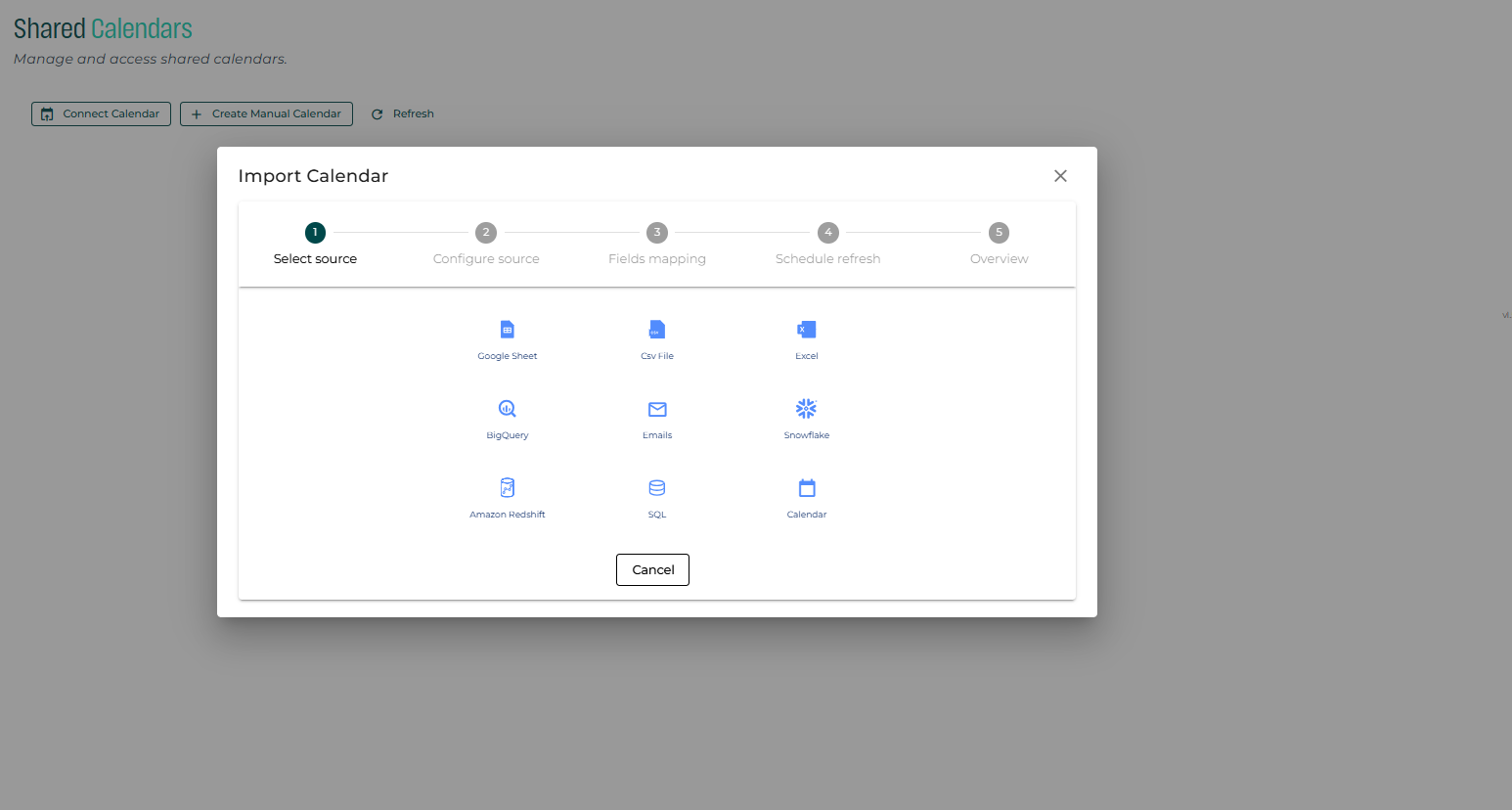
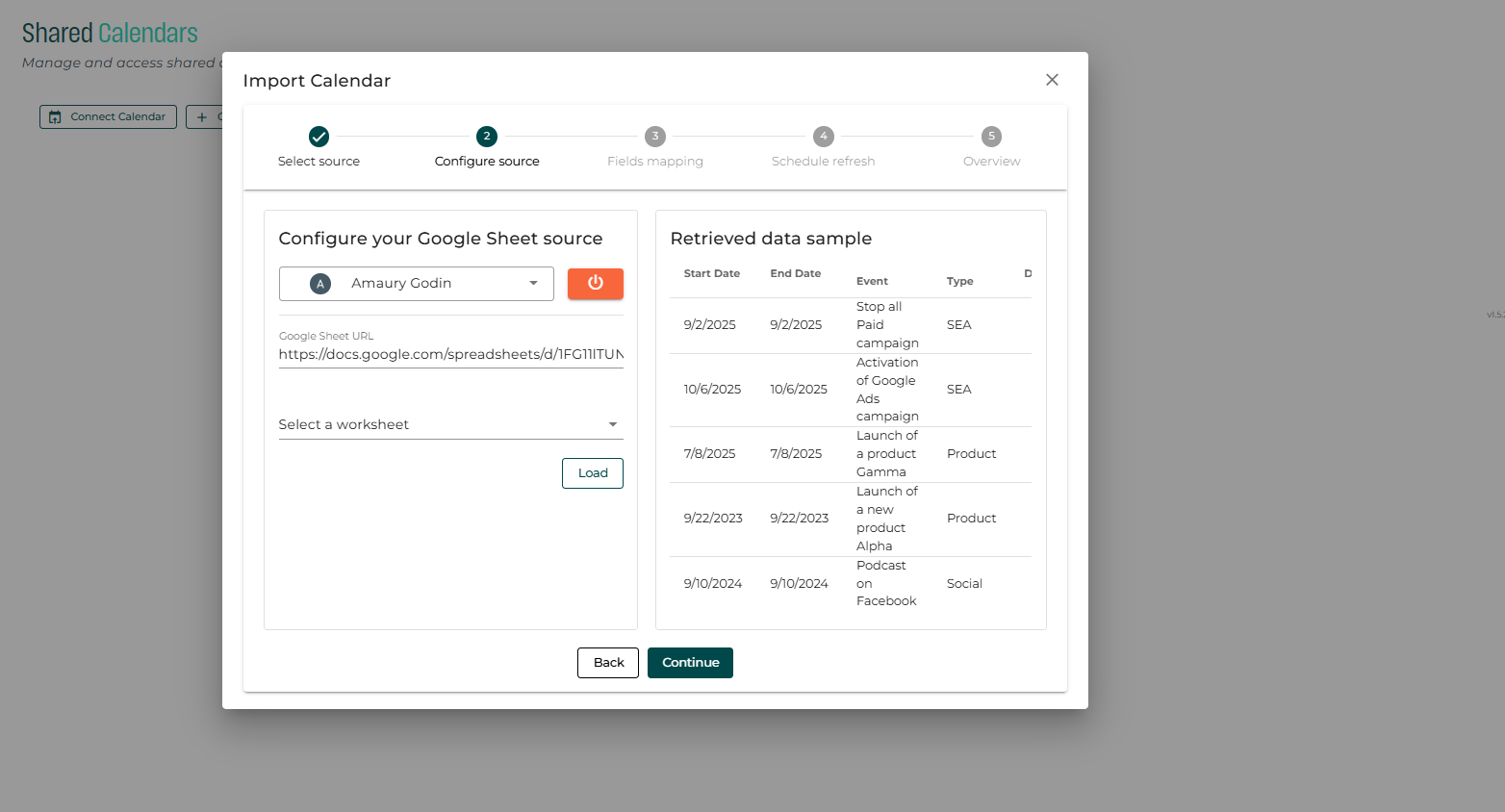
Then you have to configure your source (credentials, selecting the URL or repository depending on the source you choose), a preview of the loaded data is available:
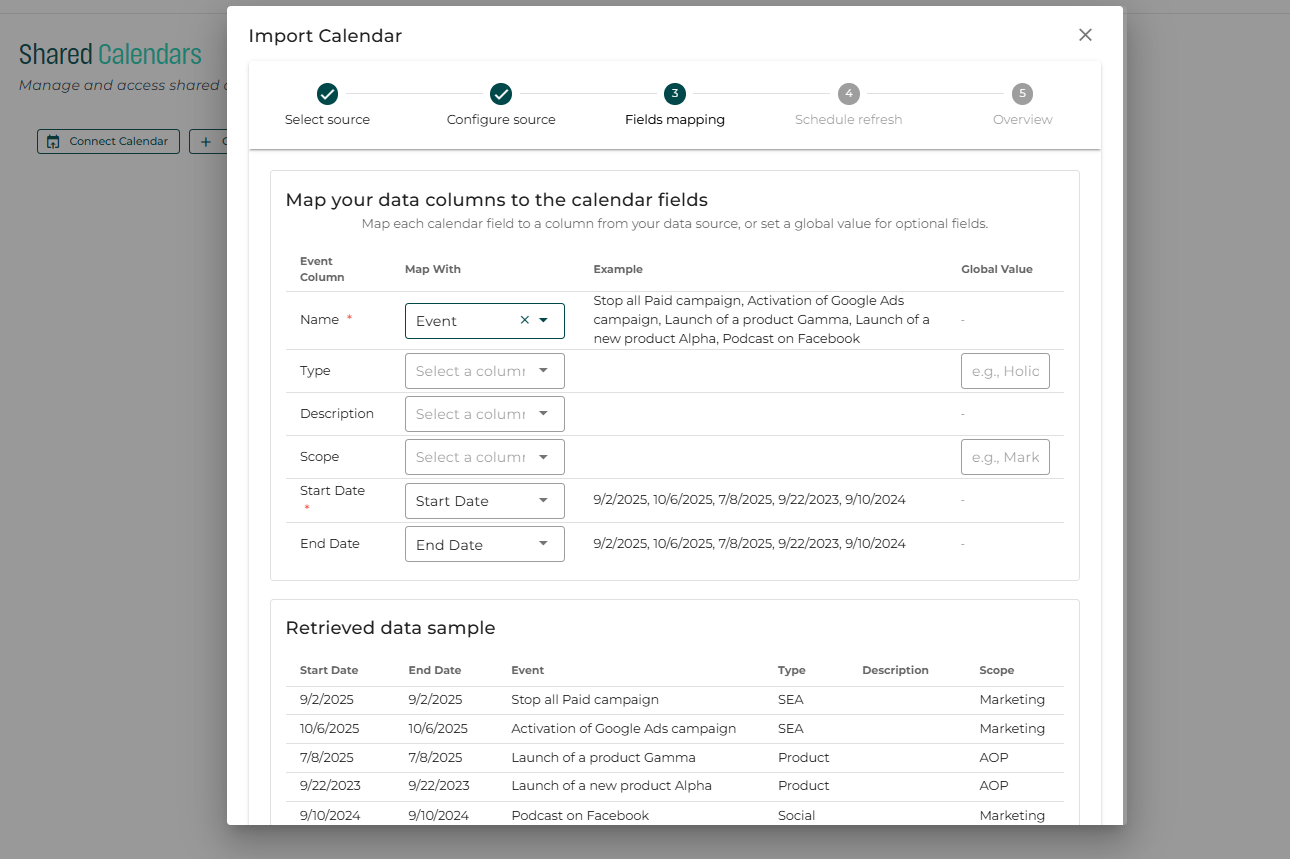
Having the data, you can now select which columns correspond to the differents fields used by Datama to integrate your calendar.
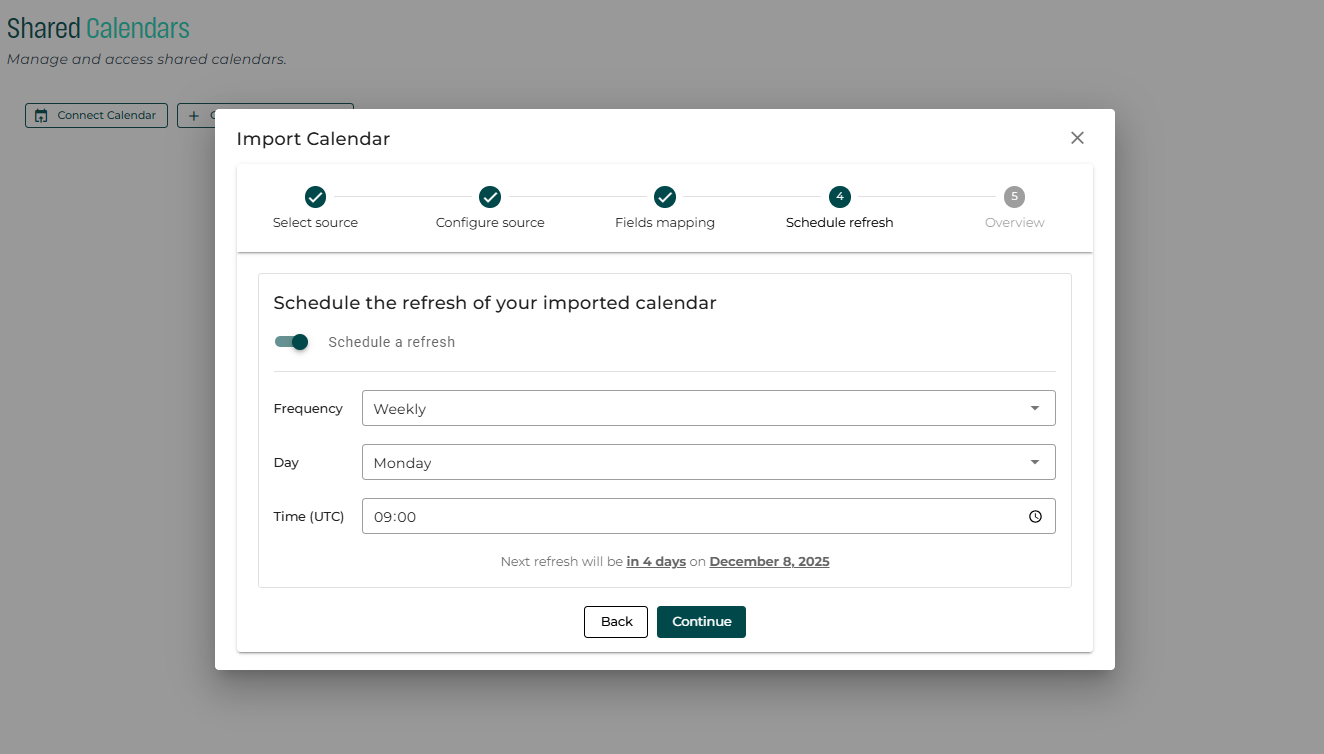
Last, when configuring a calendar, you can select the import frequency, allowing you to control how often events are refreshed.
A summarized view is available to validate all the settings.
2.2. Associating a Calendar to a Workbook
Once created, calendars can be added to any workbook based on your analytical needs.
Calendar association can be configured from:
- The Datama block in Prep
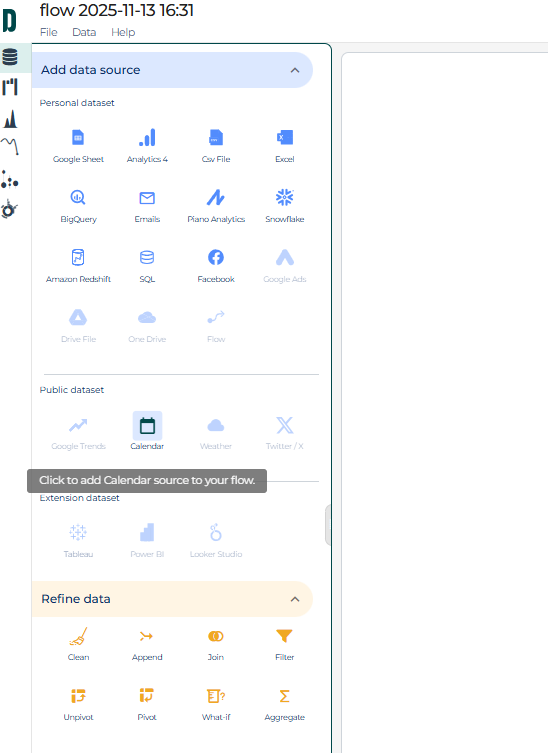
- The workbook header: Data → Calendar This enables selective use of calendars depending on their relevance to a given analysis.
2.3. Display in solution
[All solutions] Displaying Events in Helpers
When a calendar is attached to a workbook, its events become accessible in Datama Helpers. Current Behavior At this stage:
- Events are displayed only when a date dimension is used as one of the breakdown (drill-down) dimensions.
- Only events that fall within the selected analysis period are shown. This brings important operational context directly into the user assistance interface.
[Datama Compare] Display most interesting events in comments
In Datama Compare, if you are comparing date periods, most interesting events will be diplayed at the bottom of your comment of the waterfall. Event interest is based on overlap of events with Start and End Period Learn More
[Datama Compare] AI-Enhanced Commentary with Event Context
Calendars also enhance enhanced comment by enriching prompts with real event context. Automatic Context Injection When calendars are linked to a workbook:
- Events occurring during analyzed periods are automatically injected into AI prompts as context.
- No dataset values are transmitted—only event names and dates are used.
Key Use Cases Enabled
This unlocks powerful scenarios such as:
- AI explanations reworded according to a known event
- Metric variations explained with reference to holidays, campaigns, outages, product launches, etc.
- Context-aware narration of performance shifts, anomalies, or trends.