Calendar on extensions
How to create your own calendar analysis in extensions?
This section describes how to use calendar data when working with Datama through BI tool extensions. It explains how to prepare the dataset, enable the calendar feature, and display events alongside your metrics for contextual analysis.
1.Dataset you need
You’ll need a dataset that includes both event information
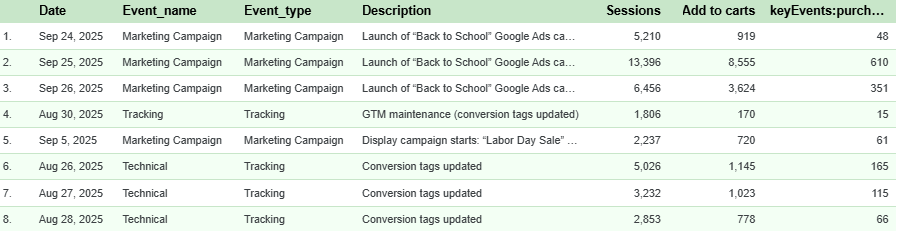
At minimum, your dataset should contain:
📅 Event date – when the event occurred
🏷️ Event name – short label for easy identification
🧩 Event type – category (e.g., campaign, public holiday, internal launch)
📝 Event description – additional context about the event
📊 Metric (KPI) – a performance indicator to analyze (e.g., revenue, traffic, conversion rate)
You can enrich it with other dimensions (e.g., country, channel, product category) to make your analysis more granular. Below is an example.
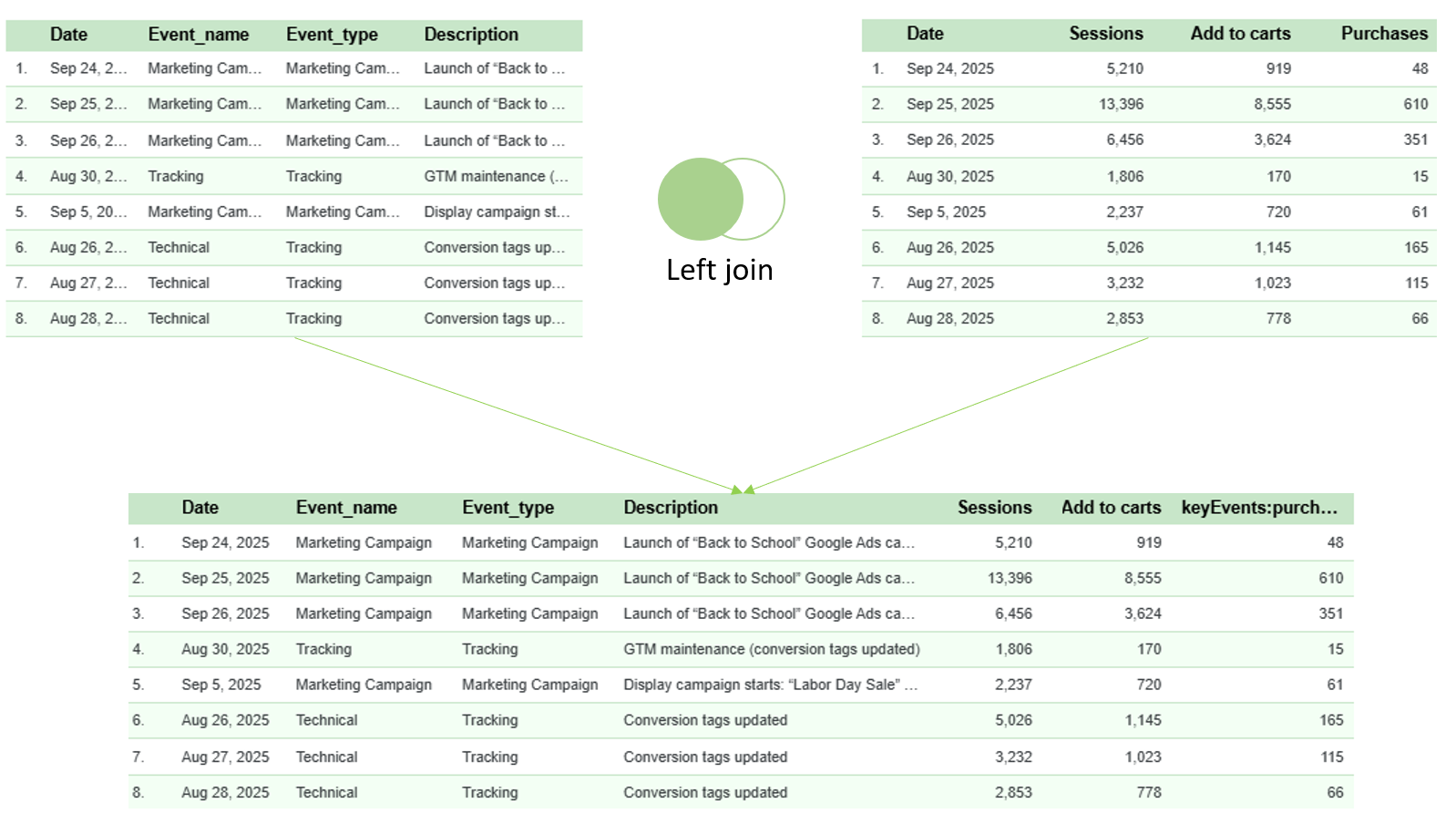
If you don’t already have an event dataset, you can easily create one by building a calendar table.
Use Date as the primary key, then left join it to your existing KPI table.
This way, every KPI record is linked to the corresponding event (if any) on that date — allowing you to visualize and analyze KPI variations alongside business or operational events.
2.Process in Datama
For now, Datama Calendar is available in the Datama Compare extension, Datama Detect extension and Datama Explore extension
You can connect your dataset either through the Web version or directly via the extension version.
If you’re using Datama Compare or Datama Detect as an extension in Power BI, Looker Studio, Tableau, or Qlik, you can perform the data join directly within your BI tool before connecting it to the extension.
Then, follow the standard setup process:
- Add the extension
- Configure your dimensions and metrics
- Display the results (see the guide How to use Datama Detect extension here)
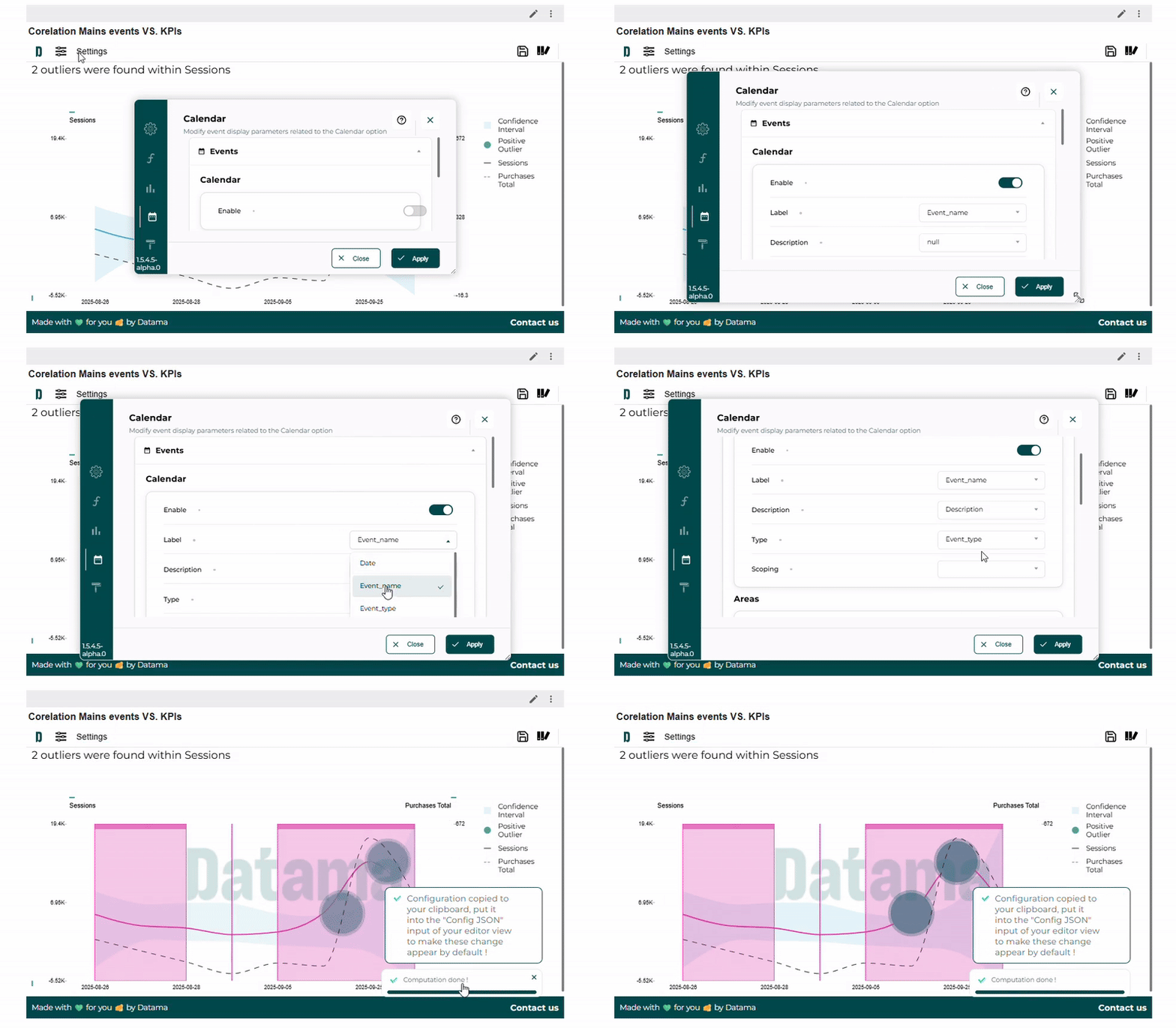
By default, Datama Calendar is disabled.
To visualize events on your charts, simply activate the Calendar option, then select the appropriate fields — Event name, Event description, and Event type — in the settings panel.